> For the complete documentation index, see [llms.txt](https://docs.agentnoon.com/llms.txt). Markdown versions of documentation pages are available by appending `.md` to page URLs; this page is available as [Markdown](https://docs.agentnoon.com/scenarios/advanced-actions/partial-data-upload-1.md).
# Partial Data Upload
Update specific fields or add new records without re-uploading your entire dataset.
Partial Upload lets you update select records or append new ones to your Agentnoon org chart without importing your full data file.
**Common use cases:**
* Update specific employee information (titles, salaries, departments)
* Add new hires without re-uploading the entire organization
* Add an acquired company's org alongside your existing org (M\&A integration)
* Bulk update specific attributes across multiple employees
* Add temporary or contractor positions
* Append new departments or business units
**Key benefits:**
* No need to re-upload your entire dataset
* Faster than a full data import
* Updates or adds only what you specify
* Existing data remains unchanged unless explicitly updated
## When to Use Partial Upload vs Full Data Import
| Use Partial Upload when | Use Full Data Import when |
| ----------------------------------------------- | ------------------------------------------------------- |
| Updating specific employee attributes | Setting up Agentnoon for the first time |
| Adding new hires or positions | Refreshing the entire dataset from your HRIS |
| Adding an acquired company for M\&A integration | Major restructuring affecting the entire company |
| Appending a new business unit or department | Correcting fundamental data issues across all employees |
| Bulk updating a subset of employees | Starting fresh after major changes |
**General rule:** Use Partial Upload for targeted changes, Full Import for complete replacement.
## Permissions
Partial Uploads can be performed by administrators and users with data management permissions. To request access, contact your Agentnoon administrator.
**Security considerations:**
* Partial uploads can modify org data and should be restricted to trusted users
* Consider an approval workflow for major uploads
* An audit trail tracks who uploaded what and when
### Prepare Your Partial Dataset
To use the partial approach:
1. Navigate to the **scenario** where you want to perform updates.
2. Go to **Data Management**.
3. Locate the option labeled **“Upload Partial Data.”**
Before proceeding, the system typically displays warnings and informational notes. These are important and should be reviewed carefully to avoid data inconsistencies.
#### **Download the Baseline File**
Start by downloading the **baseline dataset**, which serves as your reference point. You can choose between:
* **Position data**
* **Employee data**
Update the spreadsheet with only the records you want to update or add.
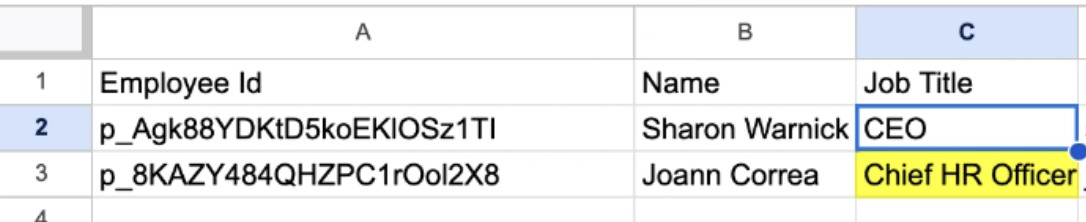
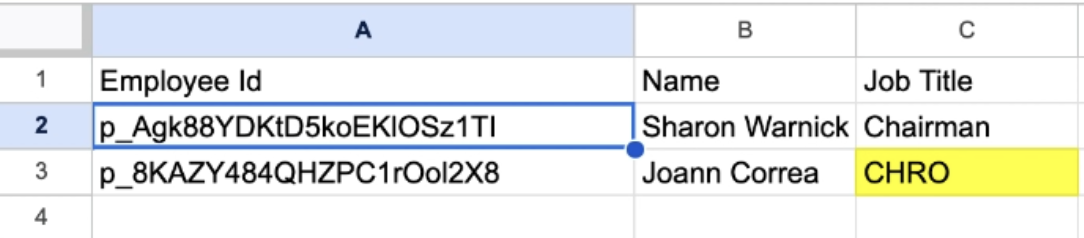
1. Include only the fields that need to be updated (e.g. Name, Job Title).
2. Ensure each row includes a unique identifier (like Employee ID or Position ID or Agentnoon ID).
3. For new positions/employees, include a Manager ID to correctly place them in the org chart.\
***Note: Records without a manager may appear detached from the structure.***
Example: Original employee dataset
Example: Edited partial upload dataset
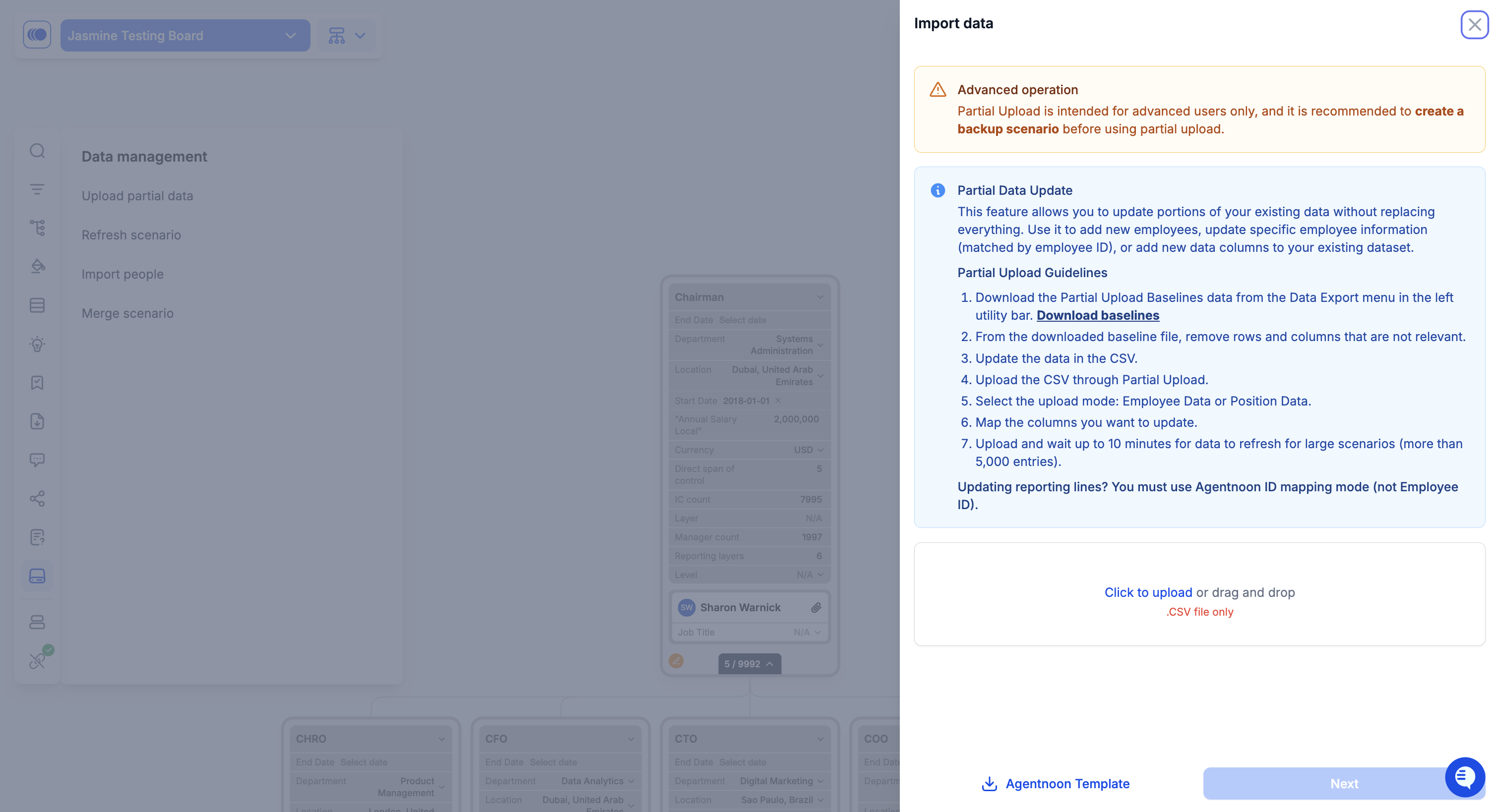
#### **Uploading the File**
1. Click to upload the file or drag and drop the file (CSV).
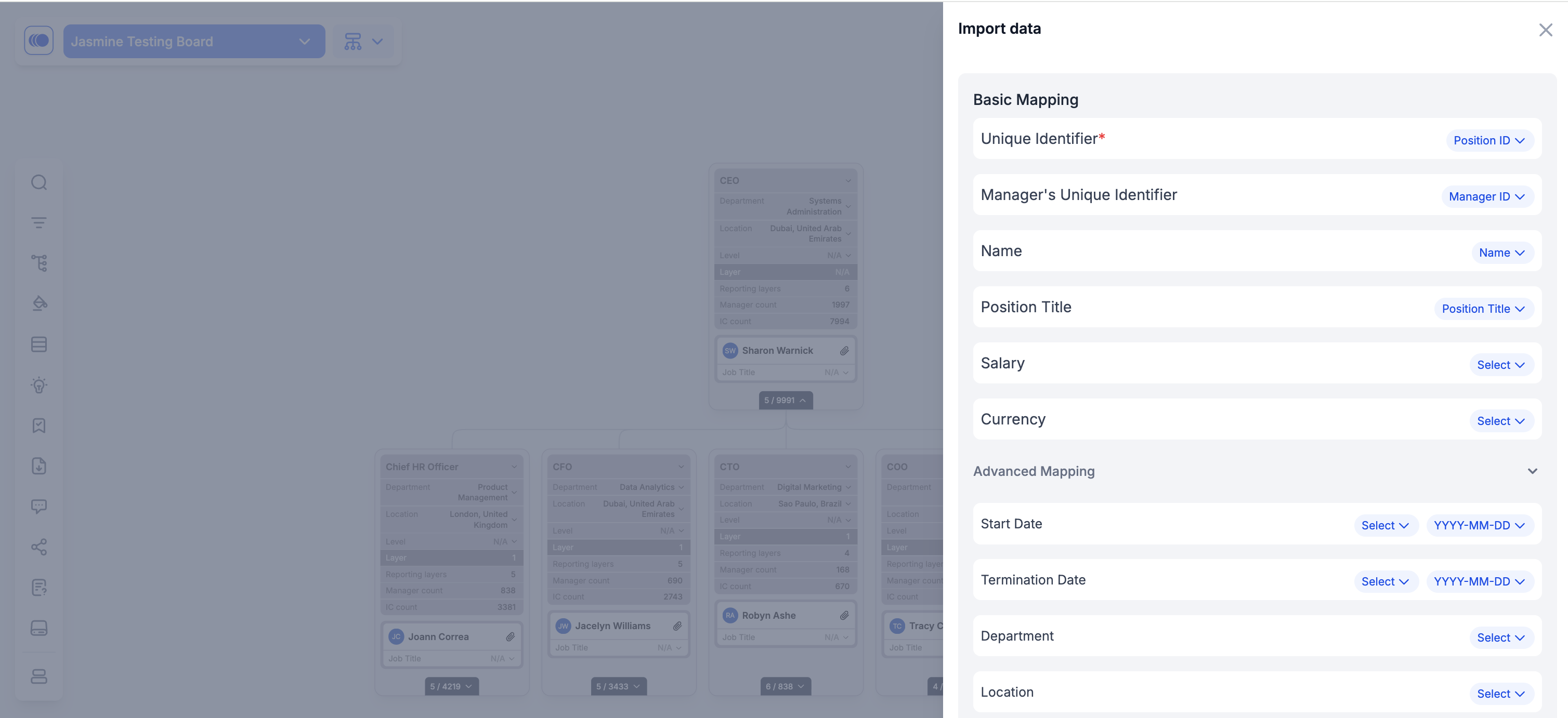
### Mapping Changes
Map records to update
1. **Select a unique identifier** (e.g., Employee ID or Position ID) so Agentnoon knows which existing records to update.
2. Agentnoon auto-detects the fields present in your partial file and pre-selects them for update. \
***Note: You don’t need to re-map fields that haven’t changed.***
3. Review the selected fields and make adjustments if needed before continuing.
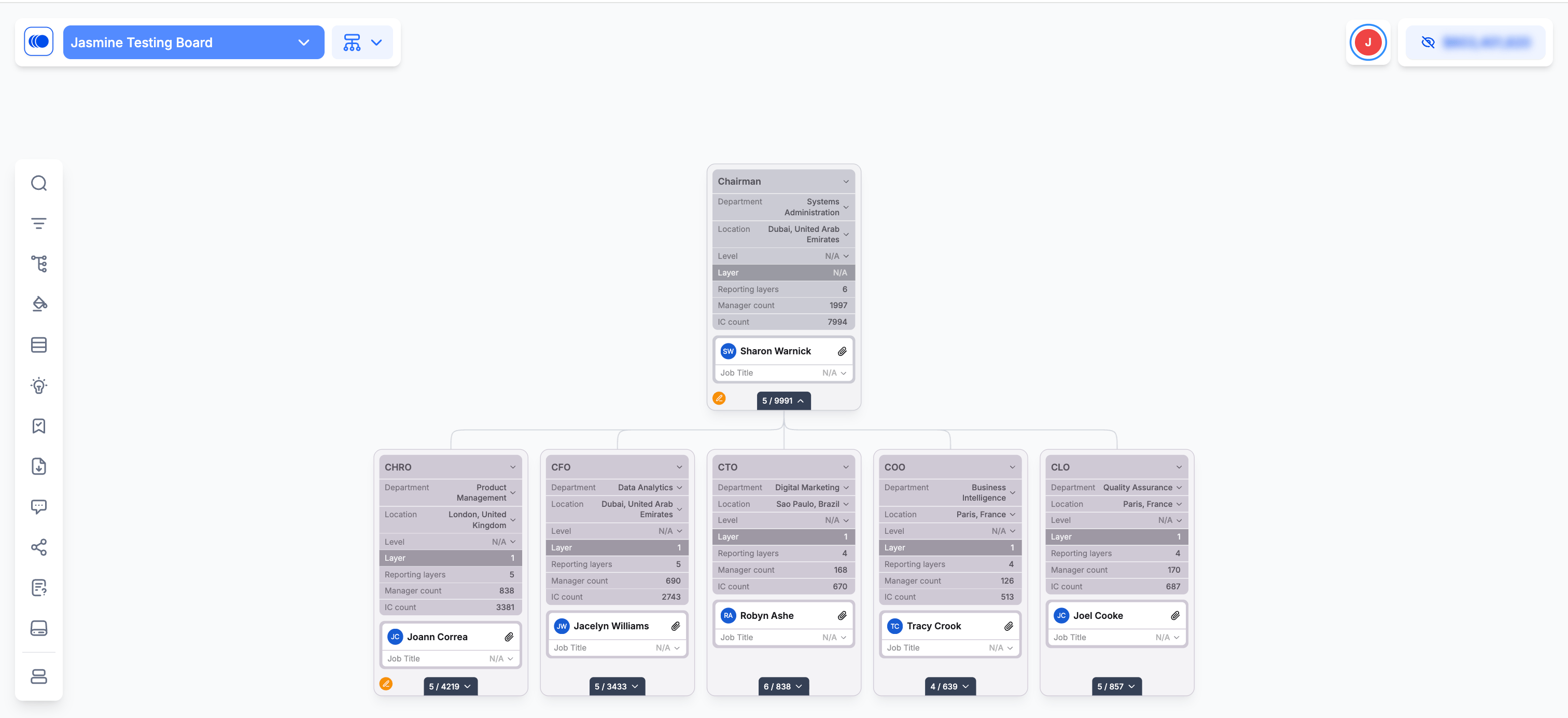
Once the upload completes, your data will be refreshed. Existing records will update, and any new records will appear in the org chart. You can identify which cards have changed by looking for the orange edit icon in the bottom-left corner.
## Advanced Partial Upload Scenarios
#### **Adding a new business unit**
Prepare a file with the new unit's positions and reporting structure. Define the entry point (which existing leader the new unit reports to). Use Partial Upload to append the unit, then verify it appears in the correct location in the org chart.
#### **Bulk attribute updates**
Export current data or create a file with just the employees to update. Include only the unique identifier and the fields that need changing — all other fields remain unchanged. Examples: updating 50 employees with new titles after reclassification, adjusting salaries for an entire department after a market adjustment, or moving a team from Department A to Department B.
#### **Adding seasonal or contract workers**
Prepare a file with contractor or seasonal employee data. Include an Employee Type attribute (e.g., "Contractor", "Seasonal"). Use Partial Upload to add these positions, then filter by Employee Type to show or hide the temporary workforce.
## Use Case: M\&A Integration
Partial Upload is the recommended approach for adding an acquired company's org alongside your existing one. Unlike a standard data import — which replaces your entire Main Org — Partial Upload adds the acquired company's data without touching your existing organization. Both orgs exist side-by-side in Main Org, allowing you to model integration in scenarios.
#### **Step 1: Prepare acquired company data**
Export the acquired company's org structure, including:
* All employees and positions
* Manager relationships
* Departments and locations
* Titles and compensation
* Any custom attributes
**Critical:** Add a "Company" or "Original Organization" column with the value set to the acquired company's name. This lets you filter and distinguish between organizations.
#### **Step 2: Perform Partial Upload**
1. Navigate to **Data Management** → **Partial Upload**
2. Upload the acquired company file
3. Map fields to Agentnoon attributes
4. Ensure unique identifiers don't conflict with existing employees
5. Confirm and process the upload
#### **Step 3: Verify both orgs exist**
1. Navigate to Main Org > **Directory**
2. Filter by the "Company" attribute
3. Verify both organizations appear
4. Check that total headcount includes both orgs
#### **Step 4: Create an integration scenario**
1. Create a new scenario for M\&A integration
2. Both orgs are visible as the starting state
3. Model consolidation, redundancy elimination, and combined structure
4. Use effective dates to phase the integration
**Learn more:** [M\&A Integration Tutorial](/reference-guides/overview/ma-integration.md)
## Best Practices
**Use unique identifiers** — Always include Employee ID, Position ID, or a guaranteed-unique email address. Without them, Agentnoon may create duplicate records instead of updating existing ones.
**Test first** — For major partial uploads, test with 5–10 records first. Verify the upload behaves as expected and check for duplicates or unexpected changes before uploading the full dataset.
**Back up before uploading** — Duplicate your Main Org as a scenario before any major partial upload. If the upload has issues, you have a reference to the original state.
**Validate your data** — Before uploading, check for missing required fields, verify manager relationships are valid, ensure unique identifiers are correct, validate data types, and remove any test or dummy data.
**Communicate major changes** — For uploads affecting many users, notify stakeholders before uploading, communicate what's changing and why, and provide a timeline for when changes will appear.
## Troubleshooting
| Problem | Cause | Solution |
| ------------------------------------- | ------------------------------------------------------------------------------- | ---------------------------------------------------------------------------------------------------------------------------------------------------- |
| Duplicate records created | Unique identifier not mapped correctly or identifiers don't match between files | Delete duplicates; re-upload with correct identifier mapping; ensure Employee ID/Position ID values match exactly |
| New records don't appear in org chart | Missing manager relationship or invalid Manager ID | Check that Manager ID exists in your org; verify manager field is mapped correctly; detached records appear at top level until a manager is assigned |
| Updates don't apply | Unique identifier not found in existing data | Verify identifier values match exactly (no extra spaces, case-sensitive); check that the records you're updating actually exist |
| Wrong fields updated | Field mapping incorrect during upload | Review field mapping carefully before confirming; cancel and restart if mapping looks wrong |
| M\&A upload replaces existing org | Standard data import used instead of Partial Upload | Contact Agentnoon support to restore if recent; always use the Partial Upload workflow specifically |
## Related Articles
* [M\&A Integration Tutorial](/reference-guides/overview/ma-integration.md) - Complete M\&A workflow using Partial Upload
* [Data Import](/admin-capabilities/overview-2/data-import.md) - Full data import process
* [Data Requirements](/admin-capabilities/overview-2/data-requirements.md) - Required fields and formatting
* [Data Error Checklist](/admin-capabilities/overview-2/data-error-checklist.md) - Troubleshooting data issues