> For the complete documentation index, see [llms.txt](https://docs.agentnoon.com/llms.txt). Markdown versions of documentation pages are available by appending `.md` to page URLs; this page is available as [Markdown](https://docs.agentnoon.com/admin-capabilities/compensation-cards.md).
# Rate Cards / Compensation Bands
Auto populate salaries using your compensation bands
### Overview
This guide explains how rate cards work in Agentnoon, allowing organizations to standardize salary structures based on role levels and locations.
### Uploading a Rate Card
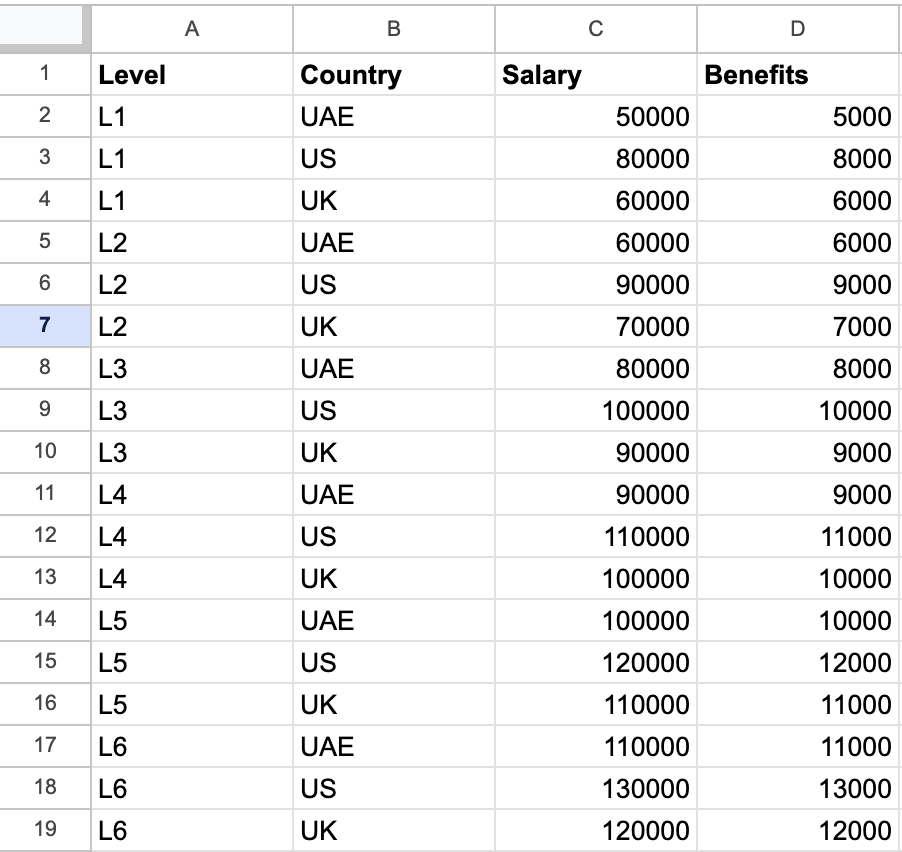
1. Prepare your **rate card / compensation bands** as a .CSV file
2. Navigate to **Upload & Map Data** and upload the CSV.
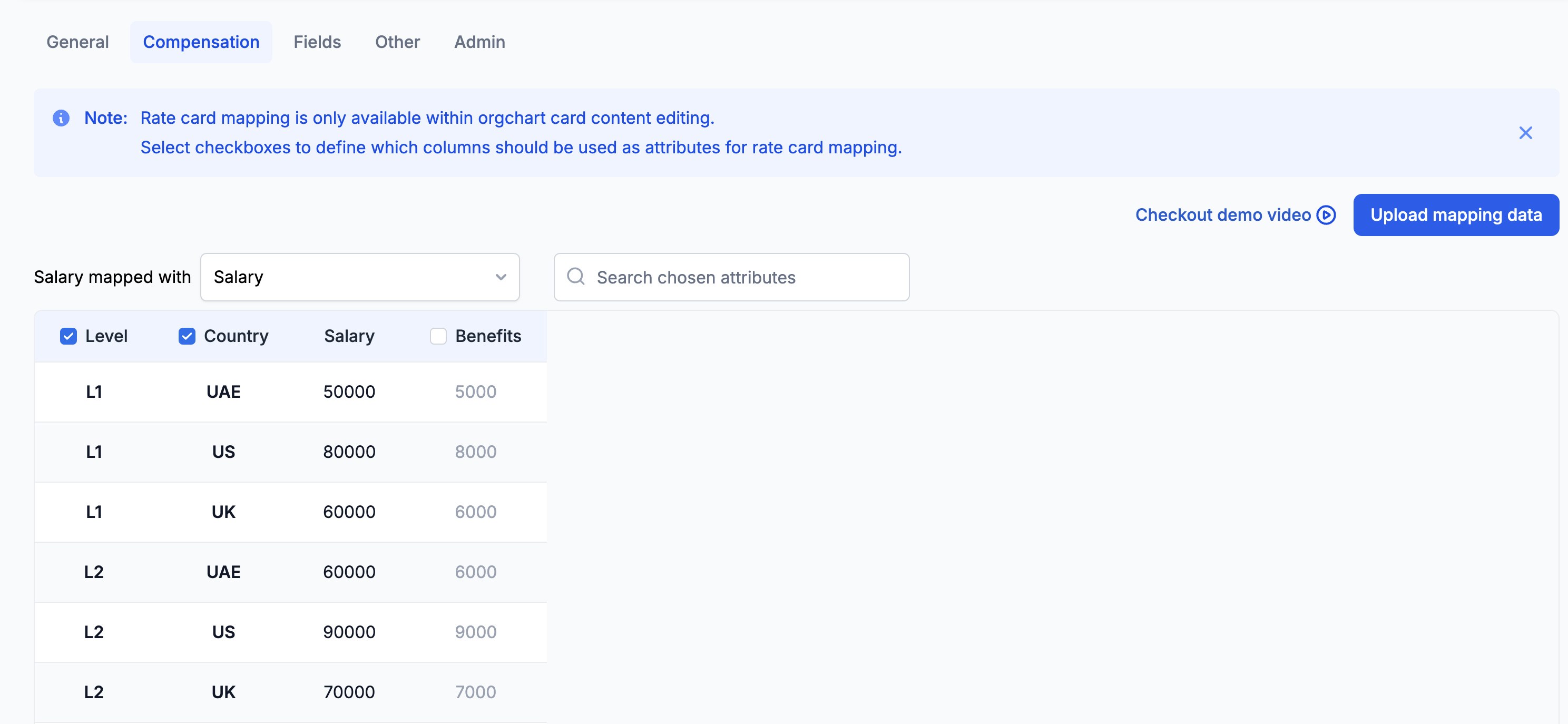
3. Once uploaded, the data appears in a table with all attributes displayed
### Mapping Salary Attributes
1. Select the attributes that define salary (e.g., **Level** and **Country**).
2. Choose the field that updates the salary (e.g., **Salary** field).
3. This ensures that salary values are dynamically populated based on predefined attributes.
### Using Rate Cards in Scenarios
1. Inside a scenario, create a new role.
2. Open **Card Content** and enable **Rate Card**.
3. Select the **Country** and **Level** for the role (or any other fields that you have defined in your upload)
4. The salary auto-populates based on the mapped rate card values, similar to a **VLOOKUP** function.
### Organizing Rate Card Fields
1. You can Group rate card fields (e.g., **Country** and **Level**) for better organization using the Groups functionality in the Fields menu.
Rate cards help enforce structured compensation bands and prevent arbitrary salary inputs across the organization.