> For the complete documentation index, see [llms.txt](https://docs.agentnoon.com/llms.txt). Markdown versions of documentation pages are available by appending `.md` to page URLs; this page is available as [Markdown](https://docs.agentnoon.com/admin-capabilities/automapping.md).
# Auto Mapping
Auto-mapping automatically maps attributes using configurable rules to ensure consistency and reduce manual work.
### Setting Up Auto-Mapping
Auto-mapping rules are configured within **Settings**.
To create an auto-mapping rule:
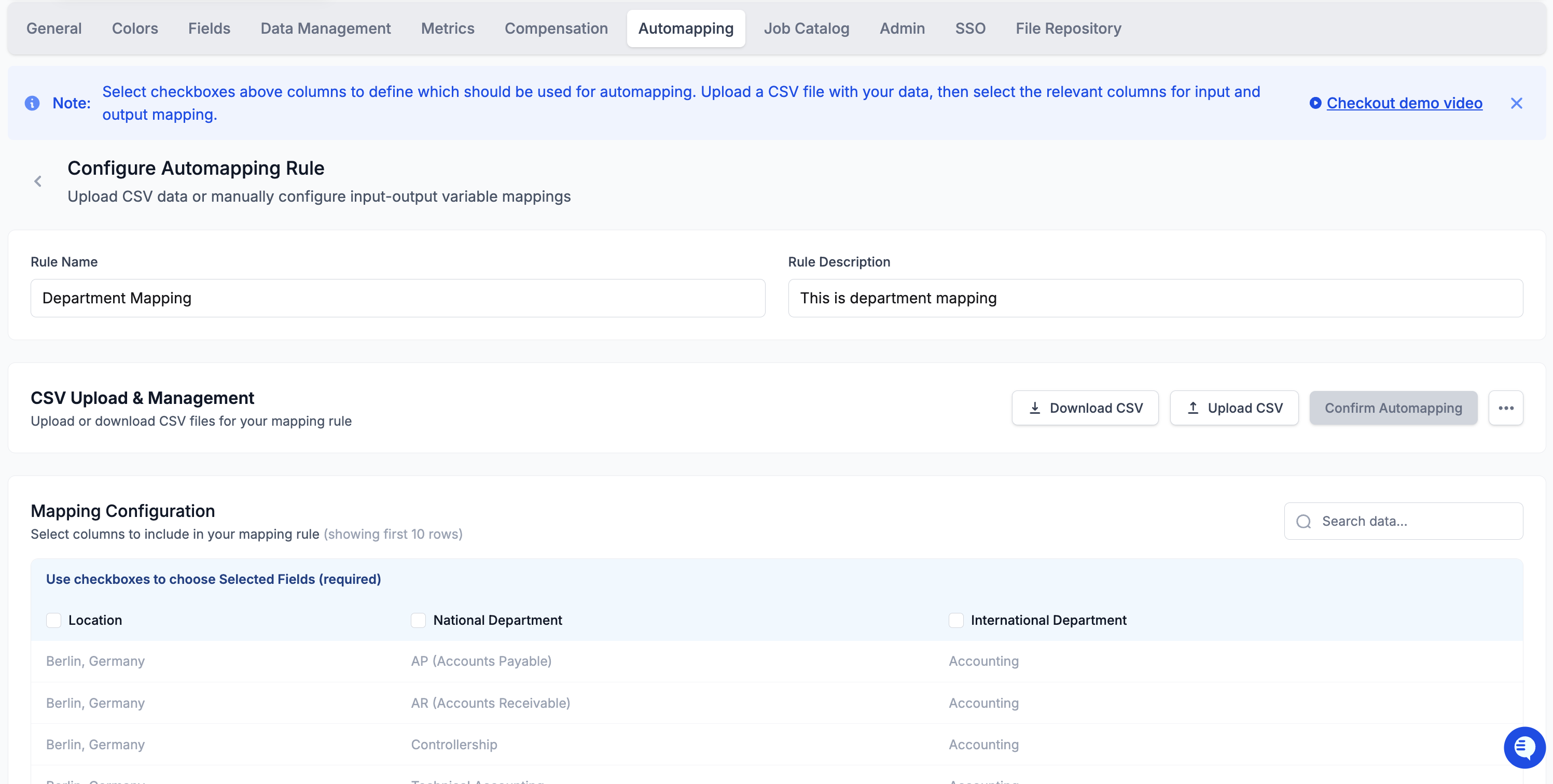
1. Navigate to **Settings**.
2. Create a new rule and provide a name and description.
3. Upload a CSV file containing the mapping logic.
4. Click on Create Rule.
Once the file is uploaded, the system guides you through configuring how the mapping should be applied.
### Configuring the Mapping Logic
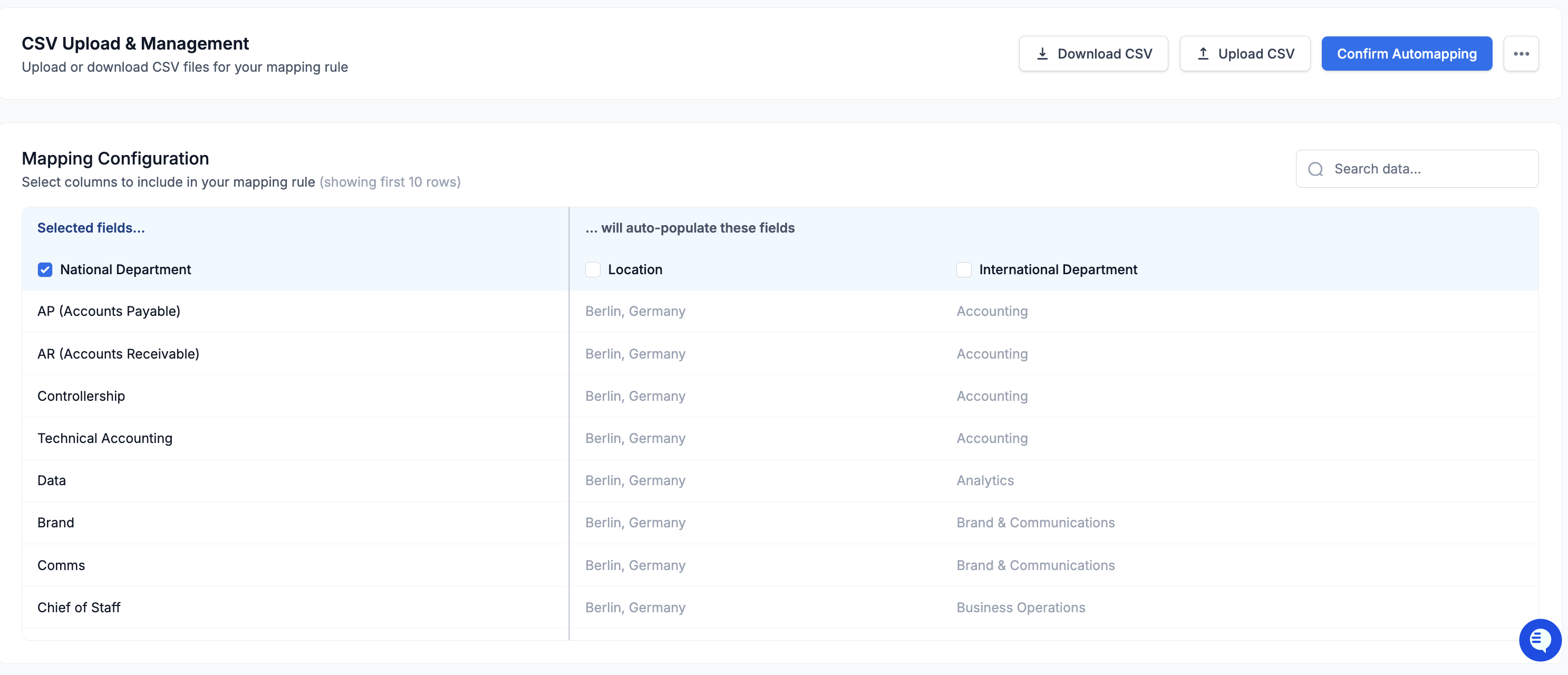
After uploading the CSV:
1. Select the column(s) that will act as the **independant attribute(s)** (e.g. National Department).
2. The remaining columns will be treated as **dependant attributes** (e.g. Location and International Department), that are automatically populated when a source value is selected or updated.
#### Example
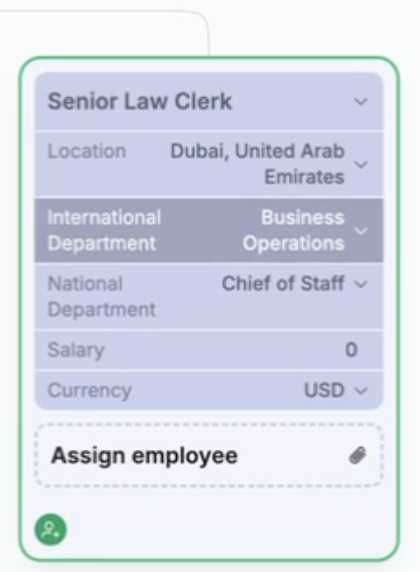
If a source value is selected (e.g., a locally defined attribute), one or more standardized values are automatically populated based on the configured mapping.
Once confirmed, the auto-mapping rule becomes active and is applied consistently across the organization.
### Modifying Existing Records
When an existing record is updated:
* Changing the source attribute automatically updates the mapped target attributes according to the rule.
This is particularly helpful when regional or team-specific terminology differs from standardized or global definitions.
### Creating New Records
When creating a new record:
1. Define the record and its position within the structure.
2. Assign a source attribute (e.g.: National Department)
3. The relevant target attributes are automatically populated based on the active auto-mapping rule.
This ensures new data aligns with organizational standards from the outset, without requiring additional manual steps.