> For the complete documentation index, see [llms.txt](https://docs.agentnoon.com/llms.txt). Markdown versions of documentation pages are available by appending `.md` to page URLs; this page is available as [Markdown](https://docs.agentnoon.com/hub/overview.md).
# Workforce Hub Overview
Introduction to the Workforce Hub and available analytics charts
## What is the Workforce Hub?
The **Workforce Hub** is Agentnoon's analytics center for understanding organizational structure, headcount distribution, spans of control, layers, and workforce costs through interactive charts and visualizations.
## When to Use the Workforce Hub
* Preparing for budget conversations with department leaders and stakeholders
* Identifying opportunities for organizational efficiency improvements
* Analyzing managerial spans and identifying compression or span issues
* Understanding headcount distribution across departments, locations, or pay grades
* Conducting structural analysis to rationalize org design
* Creating data-driven presentations for leadership
## Accessing the Workforce Hub
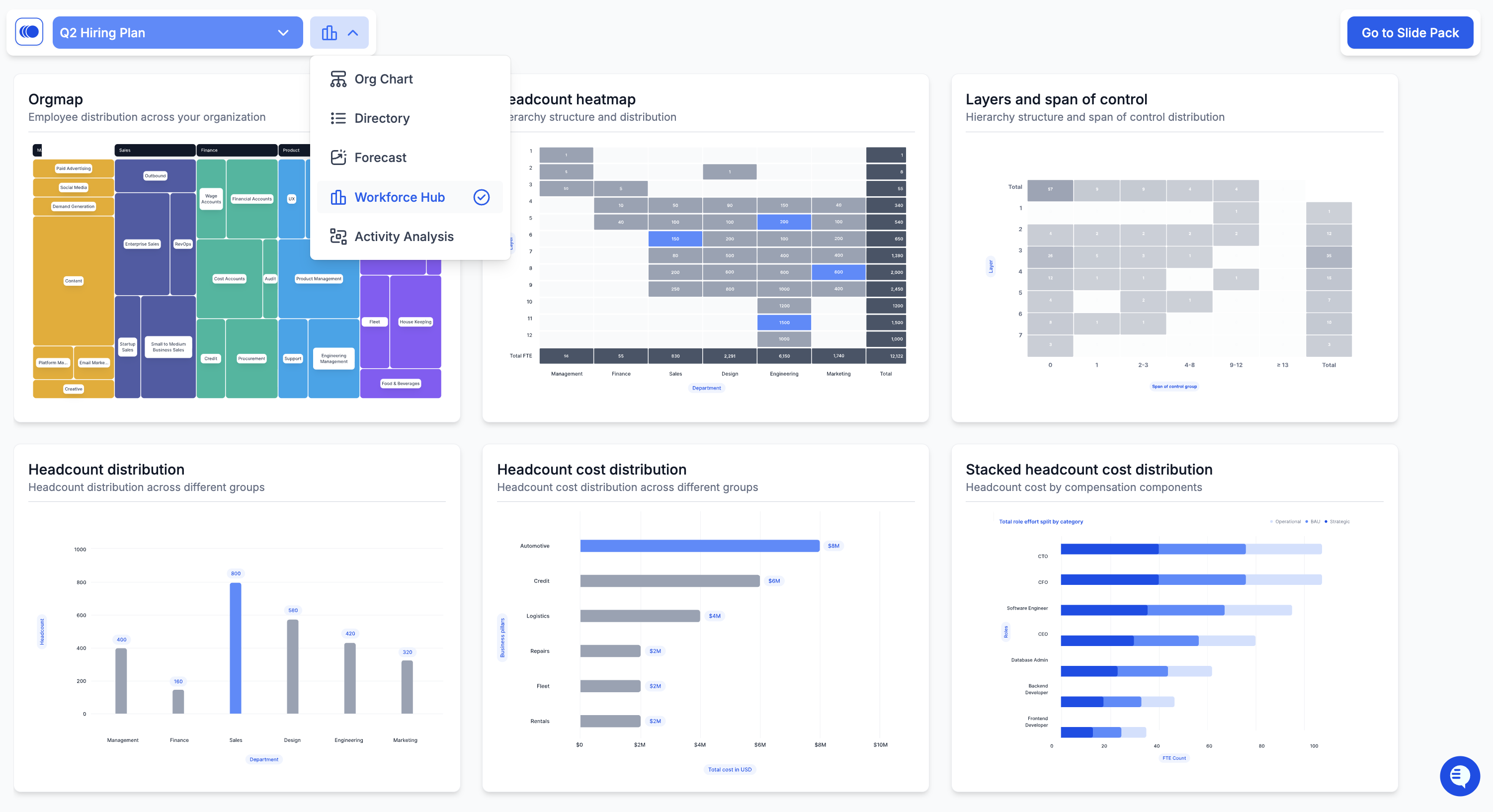
Open Agentnoon > click **Workforce Hub** in the main navigation. Pre-configured charts load immediately.
## Key Features
#### Chart Library
Pre-configured charts ready to provide immediate insights:
* Layers and Spans of Control — analyze managerial structures and identify span issues
* Headcount Distribution — view workforce distribution across various dimensions
* Headcount Heatmap — visualize headcount density across layers and departments
* Org Map — see proportional headcount splits across the organization
* Cost Analysis Charts — understand workforce expenses and budget allocation
* Span of Control Distribution — group managers by span sizes
#### Interactive Controls
Every chart in the Workforce Hub includes:
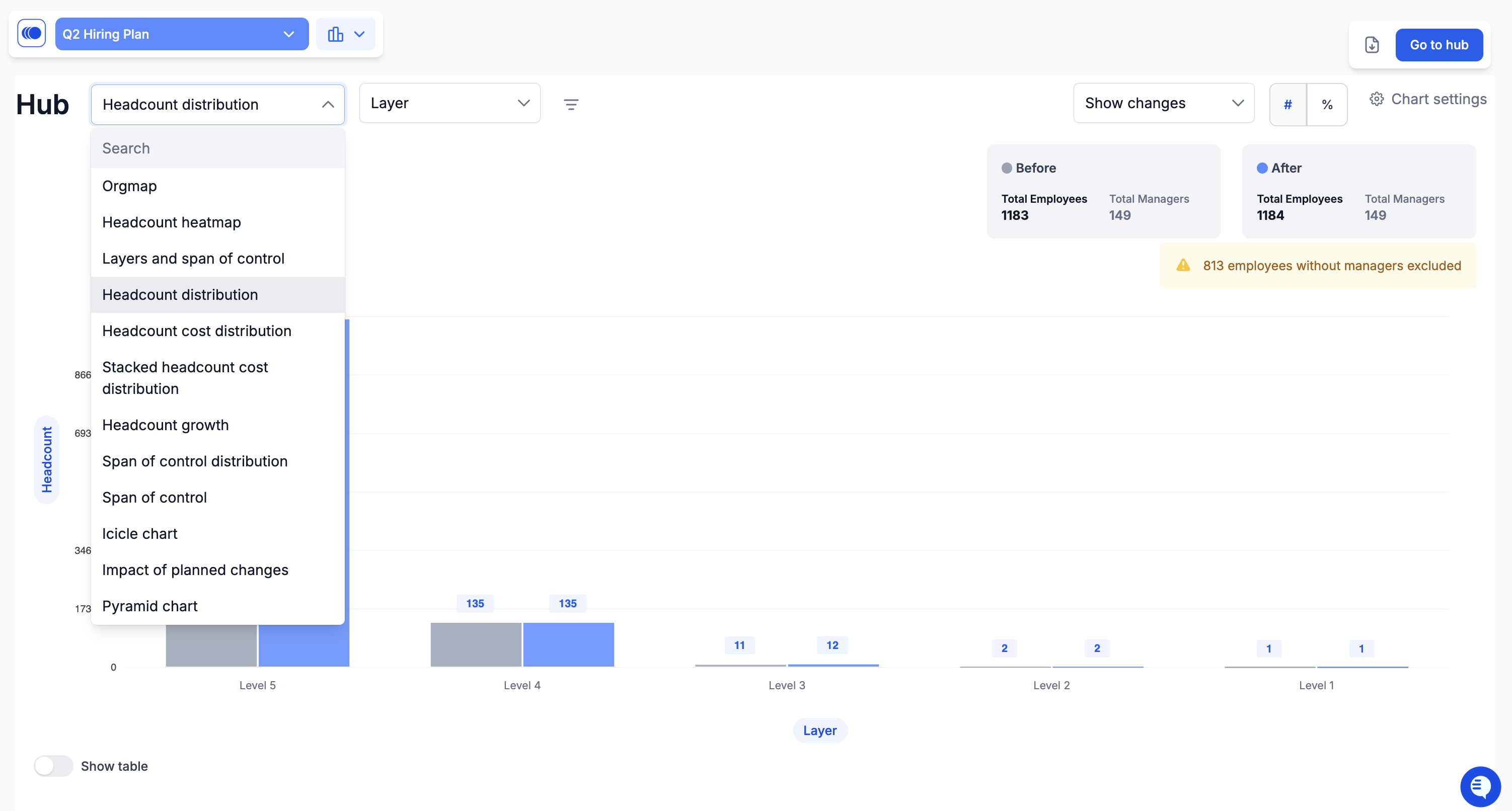
* Chart selector dropdown — switch between different chart types
* X-axis and Y-axis configuration — customize data dimensions
* Filters — focus on specific departments, locations, or attributes
* Settings gear icon — access chart-specific customization options
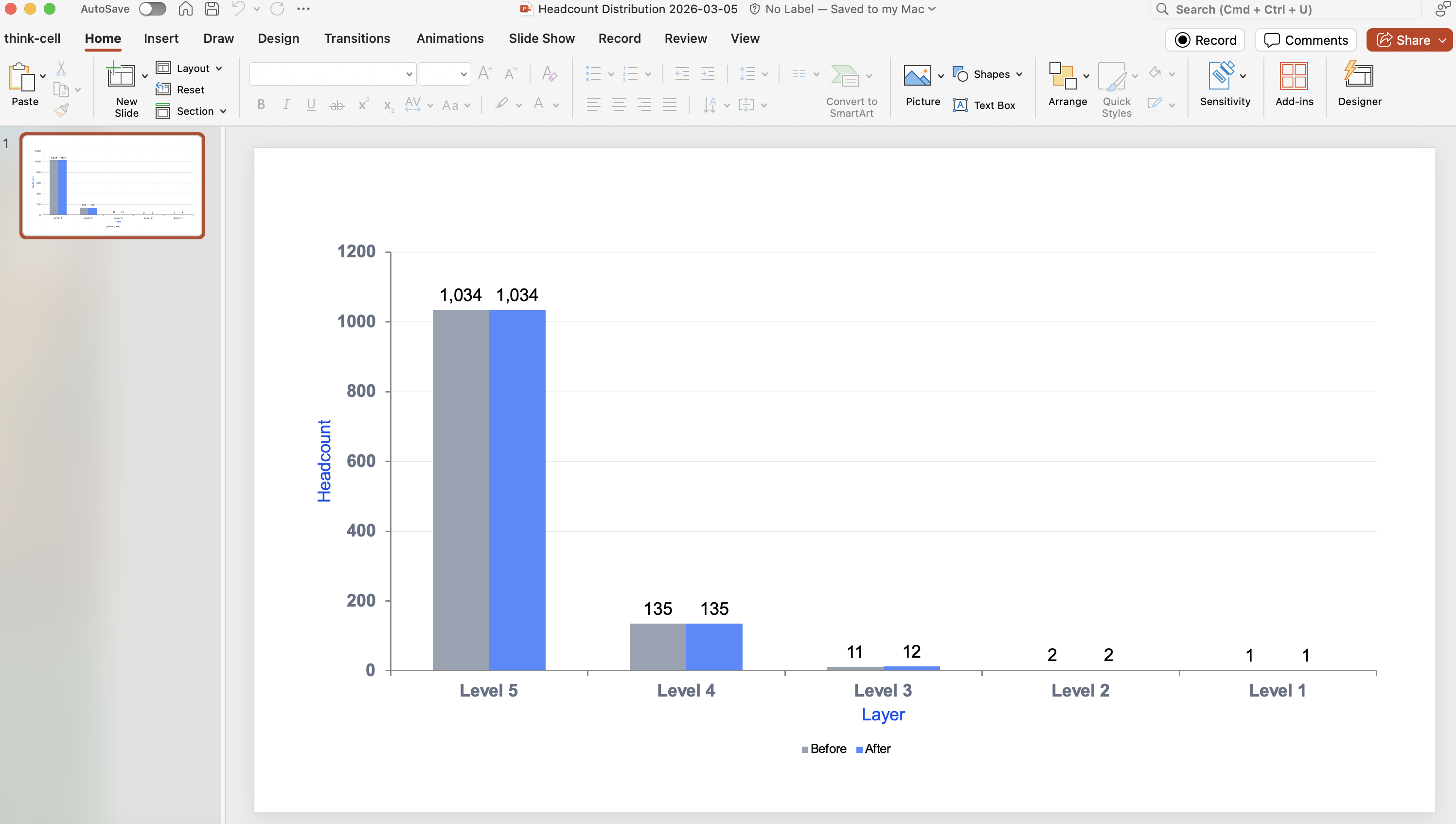
* Export options — download as PNG, PowerPoint, or CSV
* Show table function — view raw data behind the visualizations
#### Filter Persistence
Filters applied in the Workforce Hub persist across all views — when switching between charts, navigating back to the org chart, and when creating slide packs.
**Note:** If you're seeing unexpected data, always check your active filters.
## Common Workflows
#### 1. High-Level Analysis Workflow
**High-level analysis** — Start in the Workforce Hub for a bird's-eye view > use aggregate charts like Layers and Spans of Control to identify patterns > apply filters to focus on specific departments > note areas of concern or opportunity.
**Detailed discovery** — Begin with Hub charts to identify potential issues > navigate to the Org Chart > use Spotlight to drill into specific positions > analyze individual manager situations > return to Hub to verify impact of potential changes.
**Presentation** — Configure charts with relevant filters and settings > export individual charts or create a Slide Pack > download as PowerPoint for executive presentations > use CSV exports for detailed data analysis.
### Navigation Tips
* Use the **Go to Hub** button (top-right) to return to the chart library
* Use keyboard shortcuts: Press **1-5** to jump between main sections
* The **show table** function reveals position-level breakdowns
* Click on chart elements for interactive filtering (chart-specific)
### Best Practices
* **Check filters first** — always verify what data is in scope before analysis
* **Use multiple chart types** — different charts reveal different insights
* **Export early and often** — save snapshots of analysis for reference
* **Combine with org chart** — use Hub for high-level analysis, org chart for details
* **Consider context** — numbers alone don't tell the story; understand the business context behind the data
### Available Charts
The Workforce Hub includes the following chart types:
* [Layers and Spans of Control](/hub/layers-spans-chart.md)
* [Headcount Distribution](/hub/headcount-distribution-chart.md)
* [Headcount Heatmap](/hub/headcount-heatmap-chart.md)
* Org Map
* Icicle Chart
* Proportion Chart
* Span of Control Distribution
* Average Span of Control
* Pyramid Chart
* Headcount Cost Chart
* Stacked Headcount Cost Chart
For information about creating packs, see [Slide Packs](/hub/packs.md).
### Visual Guide