> For the complete documentation index, see [llms.txt](https://docs.agentnoon.com/llms.txt). Markdown versions of documentation pages are available by appending `.md` to page URLs; this page is available as [Markdown](https://docs.agentnoon.com/start-here/agentnoon-101/views.md).
# Views
Once the changes are made in a scenario, you may want to preserve the updated structure or return to a previous version
#### What Are Views?
Views allow you to capture and revisit specific states of your scenario. They help you:
* Track changes made to the structure
* Compare current updates with the original (base) version
* Save configurations for future use
#### Accessing Orgchart Views
To access Orgchart views:
1. Navigate to the **Orgchart** **module**
2. Navigate to the **left toolbar**
3. Click on **Views**
Here, you will see:
* The **Base View** (original state)
* Any **changes** that have been made
The system highlights differences, making it easy to identify what has been modified.
#### Accessing Directory Views
To access Directory views:
1. Navigate to **Directory module**
2. Navigate to the **left toolbar**
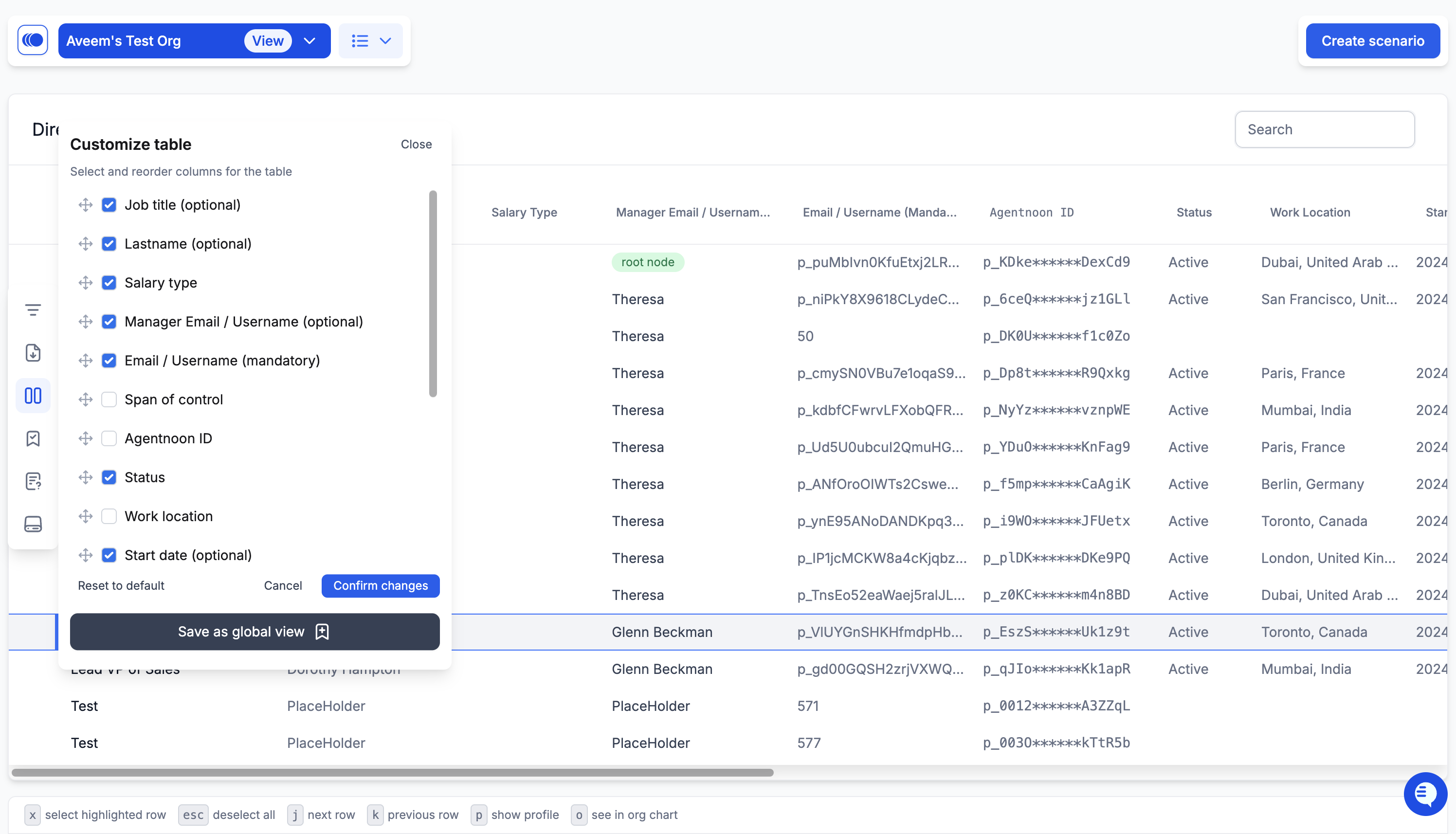
3. Click on **Customize table** and save a view first
4. Then, click on **Views** from the **left toolbar** to access your saved views
Here, you will see:
* **All columns** (original state)
* Any **new views created**
#### Saving an Orgchart View
If you want to preserve your current scenario setup:
1. Click on **Save Current View**
2. Enter a name (e.g., *Global View 1*)
3. Save the view
This allows you to return to this exact configuration later.
#### Saving a Directory View
If you want to preserve your current directory setup:
1. Go into **Customize table**
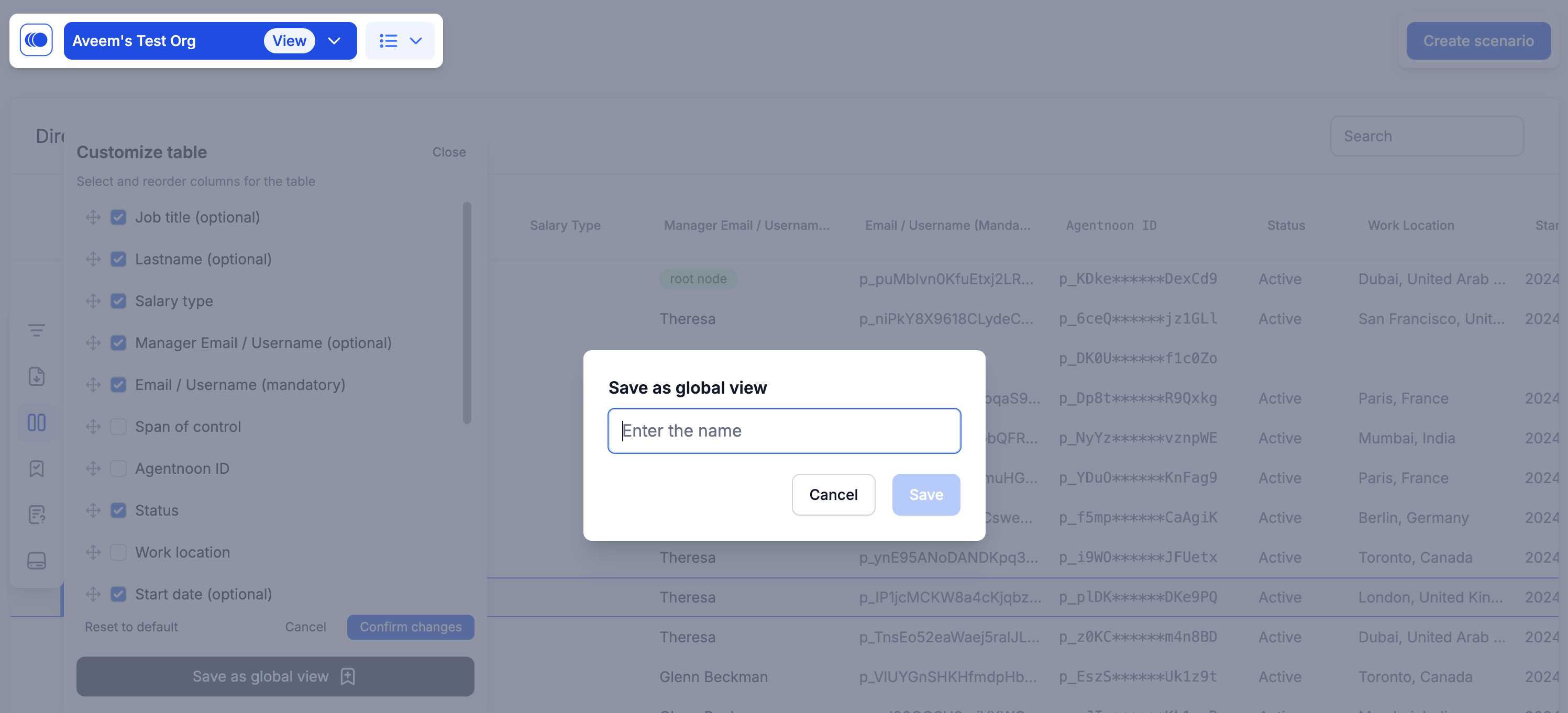
2. Click on **Save as global view**
3. Enter a name (e.g., *Global View 1*)
4. Save the view
(**Note:** Only admins can set global views)
#### Sharing Views with Others / Global Views
If you want your view to be accessible to other users:
* Select **Save as Global View** when saving
Once saved:
* The view will appear under **Global Views**
* Other users with access to the main org & scenario can also see and use it \
(**Note:** Their access scopes will apply, if the user doesn't have access to a particular field inside a view - it won't show up for them)
#### Access Control Considerations
Visibility of global views depends on user permissions. Only users with the appropriate access rights will be able to view and interact with shared views.