> For the complete documentation index, see [llms.txt](https://docs.agentnoon.com/llms.txt). Markdown versions of documentation pages are available by appending `.md` to page URLs; this page is available as [Markdown](https://docs.agentnoon.com/scenarios/using-scenarios-basics/managing-effective-dates-in-scenarios.md).
# Managing Effective Dates in Scenarios
### Overview
Effective dates determine when changes made within a scenario take effect and are reflected in forecasting and analysis. Users can set effective dates either in bulk or for individual cards.
### Setting Effective Dates
There are two ways to update the effective date:
#### 1. Bulk Edit (Multiple Cards)
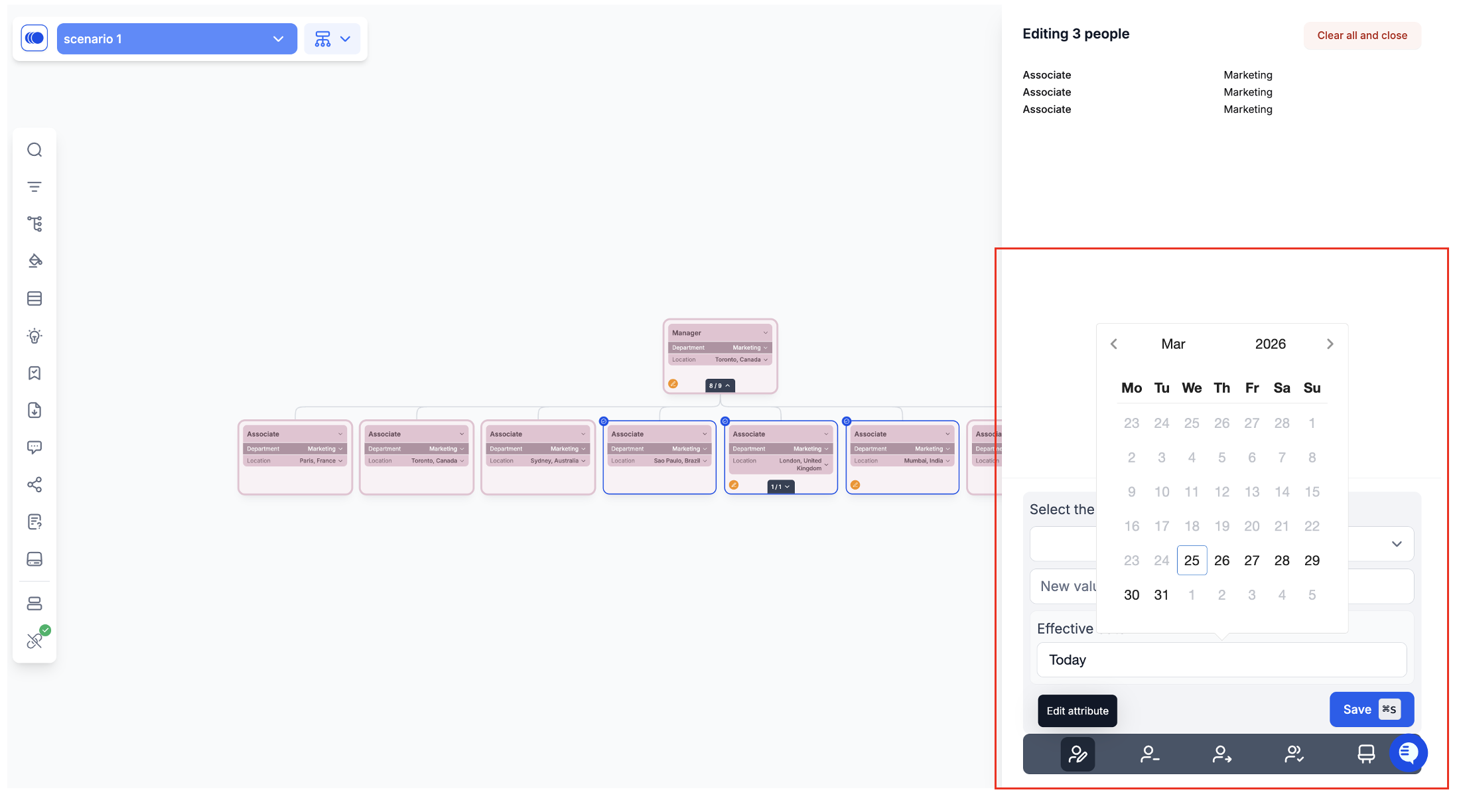
1. Navigate to your scenario.
2. Select one or more cards.
3. Open the **right-side panel**.
4. Click **Edit Attribute**.
5. Locate the **Effective Date** field (default is set to today).
6. Choose your desired date (e.g., March 29).
7. Save your changes.
#### 2. Individual Card Edit
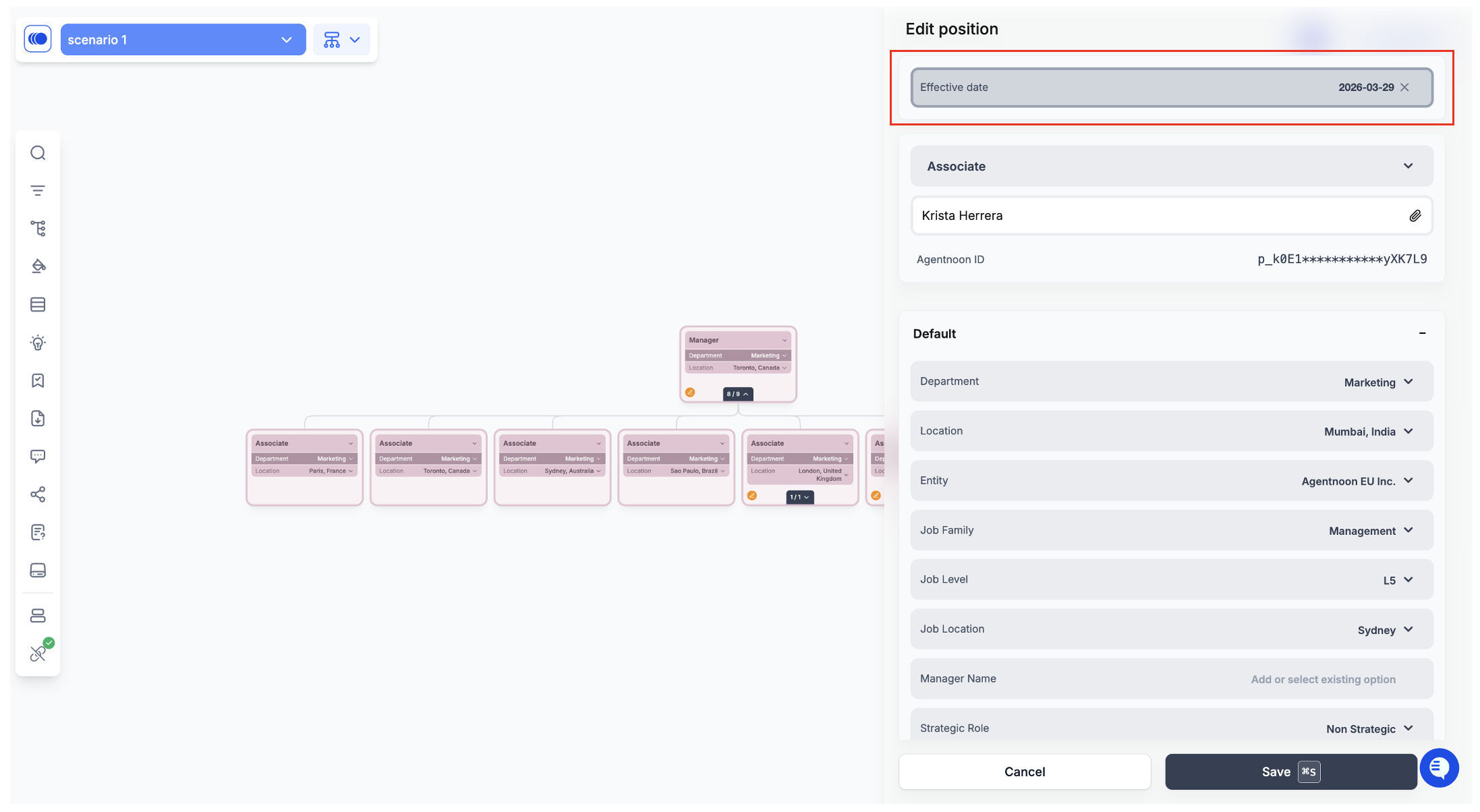
1. Open a specific card.
2. In the **edit pane**, locate the **Effective Date** at the top right.
3. Update the date as needed (e.g., March 29).
4. Save your changes.
### How Effective Dates Impact Forecasts
* Changes will **only be reflected on or after the selected effective date**.
* If the effective date is set in the future, updates will not appear in forecasts until that date is reached.
### Viewing Changes in Forecast
To review how effective dates impact your scenario:
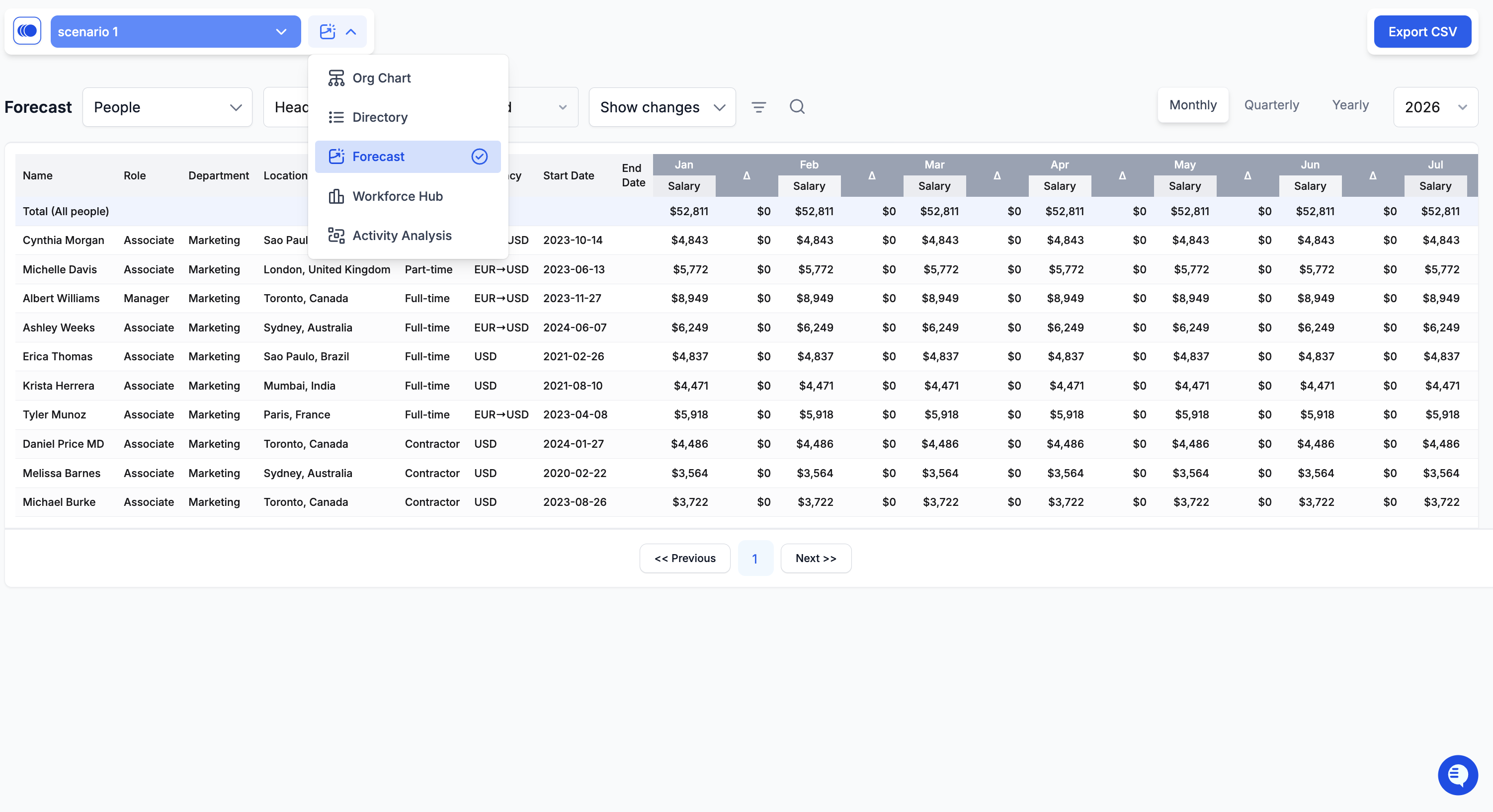
1. Click the **menu icon**.
2. Select **Forecast**.
3. If the effective date has passed (or is current), you will:
* See updated values reflected in the forecast.
* Be able to **compare before and after changes**.
### Analyzing Results
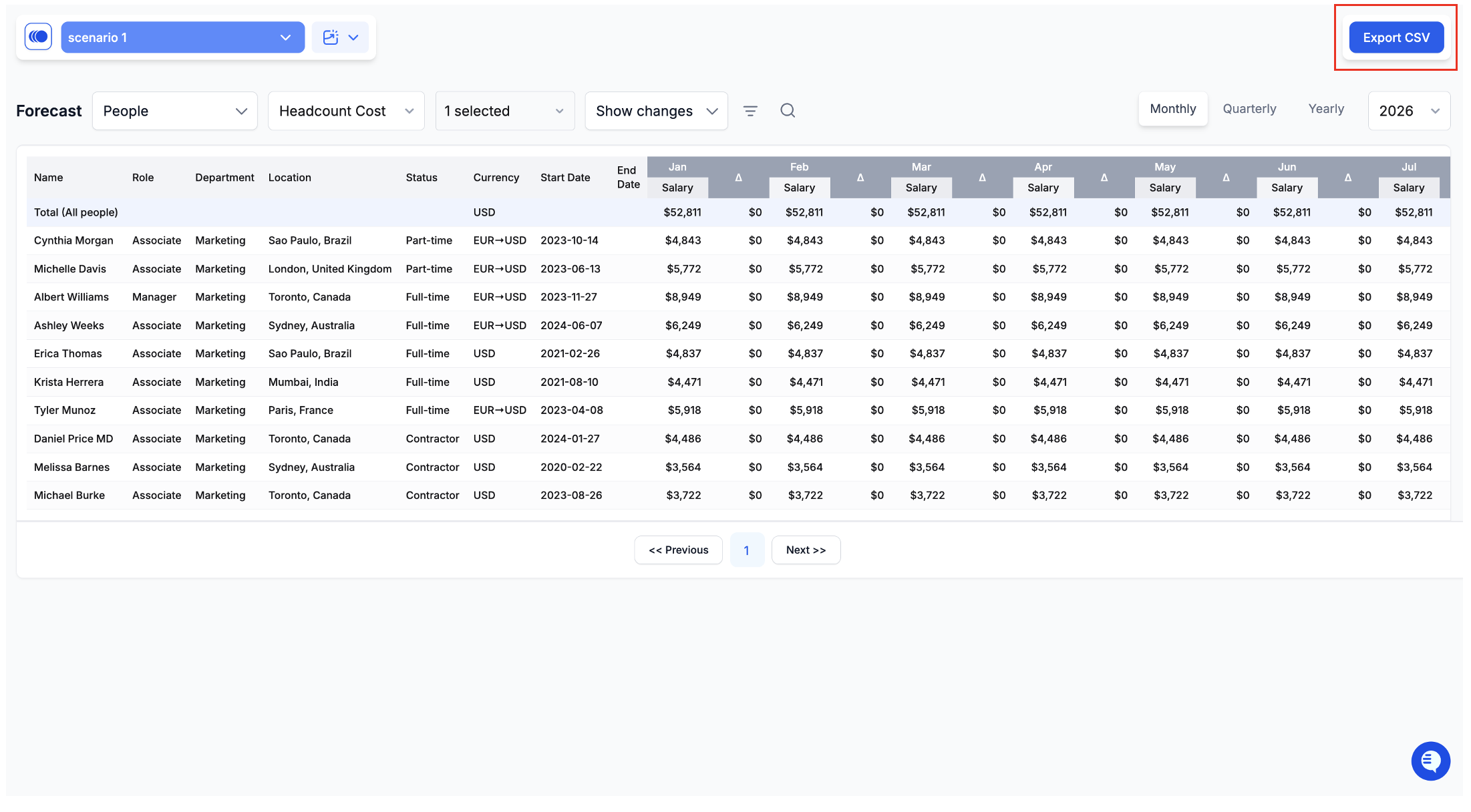
You can analyze the impact of your changes in multiple ways:
* View data across:
* Monthly
* Quarterly
* Yearly perspectives
* Export data as a **CSV file** for further analysis.
### Key Notes
* The default effective date is **today**.
* Future-dated changes will not appear until the selected date is in effect.
* Both bulk and individual editing options provide flexibility depending on your workflow.