> For the complete documentation index, see [llms.txt](https://docs.agentnoon.com/llms.txt). Markdown versions of documentation pages are available by appending `.md` to page URLs; this page is available as [Markdown](https://docs.agentnoon.com/scenarios/management/basic-actions.md).
# Basic Actions
Renaming, duplicating, archiving, and deleting scenarios
As you create more scenarios, keeping them organized becomes essential. This section covers tools for managing your growing library of workforce planning scenarios. For creating scenarios, see [Creating Scenarios](/scenarios/creating-scenarios.md).
## Rename a Scenario
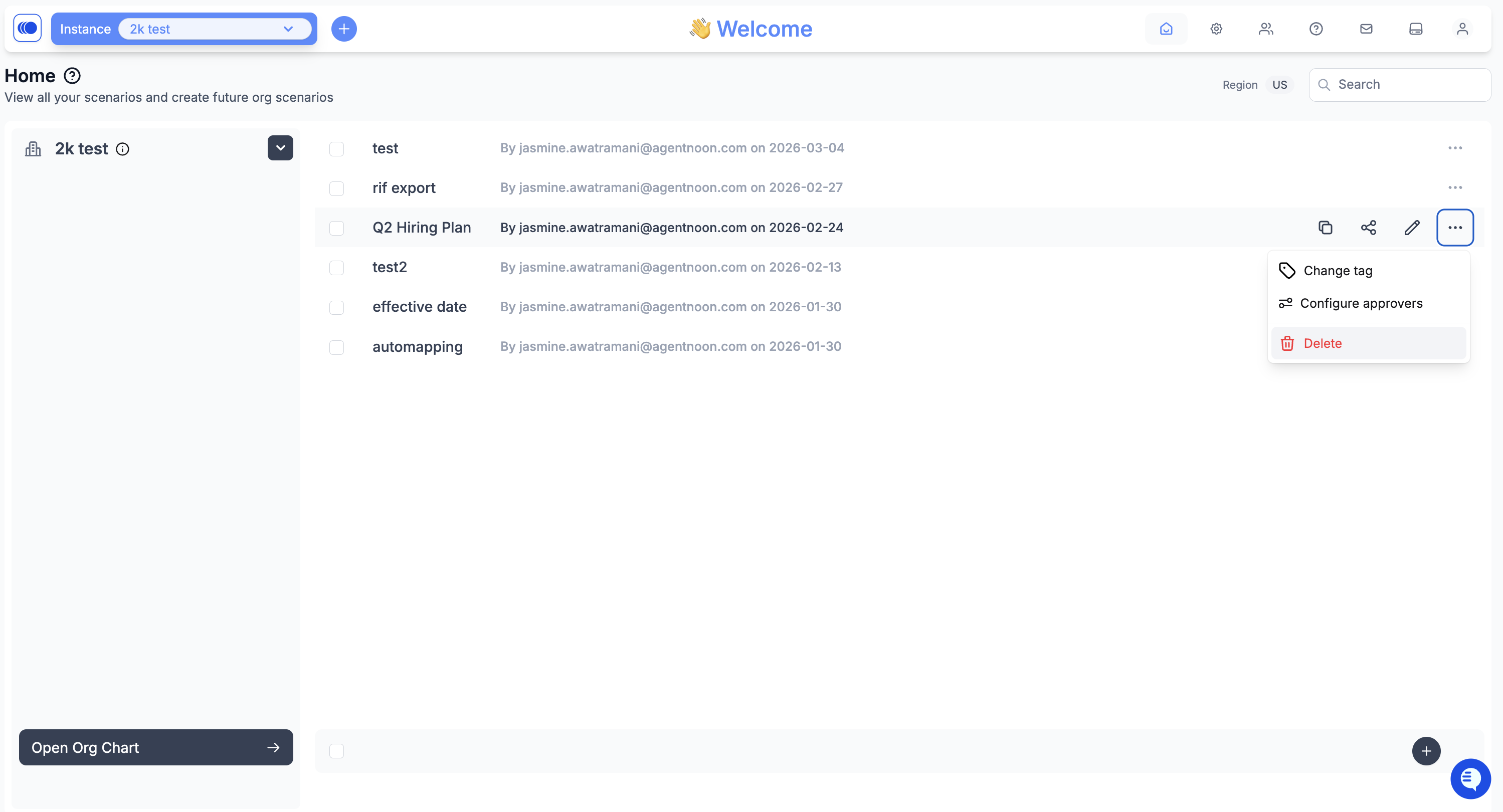
**From the homepage:** Click on the "Edit" icon > enter new name > **Save**
**From inside a scenario:** Click the scenario name in the top-left, type the new name, and press **Enter**.
**Tip:** Include purpose, timeframe, and version — e.g., "Engineering Q2 2026 Expansion - Option A"
## Duplicate a Scenario
Use duplication to test alternatives while keeping the original intact.
1. Click on "Duplicate" icon
2. A copy is created with "\[Original Name] Copy"
3. Rename the duplicate to reflect its purpose
The duplicate includes all positions, changes, and effective dates. It does not include shared access or approval status — it starts as a new draft.
## Delete a Scenario
1. Click **⋮** on the scenario
2. Select **Delete**
3. Confirm deletion
Deletion is permanent and cannot be undone. Use it only for test scenarios or duplicates you no longer need.
## Switching Between Scenarios
From inside a scenario, click the scenario name dropdown in the top-left to see all accessible scenarios and switch between them. Your current scenario autosaves.
:bulb: **Protip - Backup Before Major Operations** - Duplicate your scenario before: a scenario refresh, merging, large bulk operations, or wide sharing. In the scenario actions menu (⋮) > Duplicate Scenario. Name the backup with a date (e.g., "Plan - BACKUP 2026-02-18").