# February 2025
## February Highlights
We made major strides this month to enhance planning, collaboration, and reporting. You can now undo scenario changes instantly, co-edit Slide Packs with your team, and export them as full PowerPoint decks. Plus, you can now refine org charts with dual highlights and customize Hub Chart sorting for better insights.
## 🚀 What's New?
### Undo button in scenarios
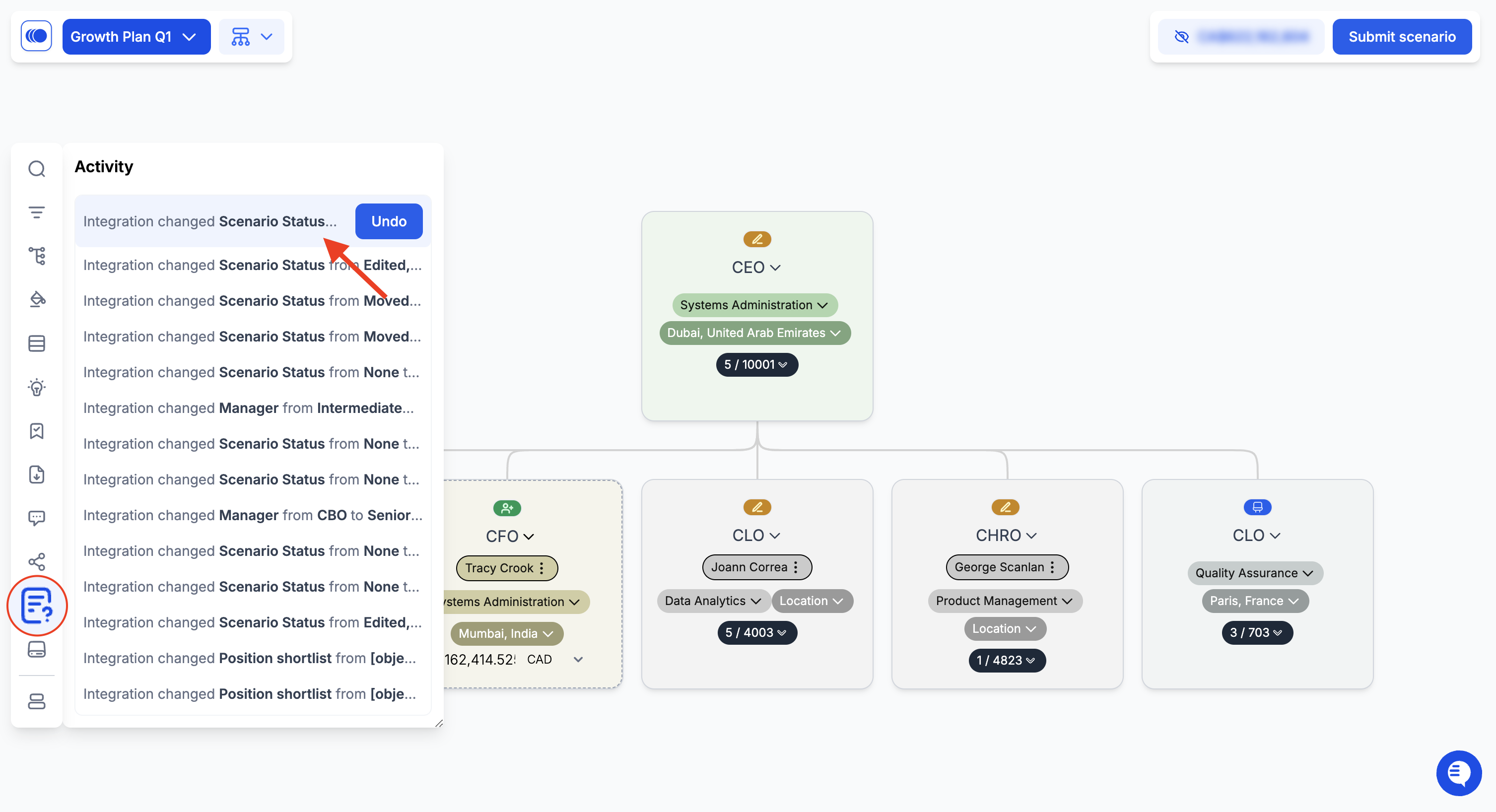
Easily revert scenario modifications with a single click, giving you more control over workforce planning.
* Open a scenario and go to **Activity Log** in the left navigation bar.
* Hover over the action you want to undo and click Undo to instantly revert the change.
### Dual-Attribute Highlighting in Org Charts
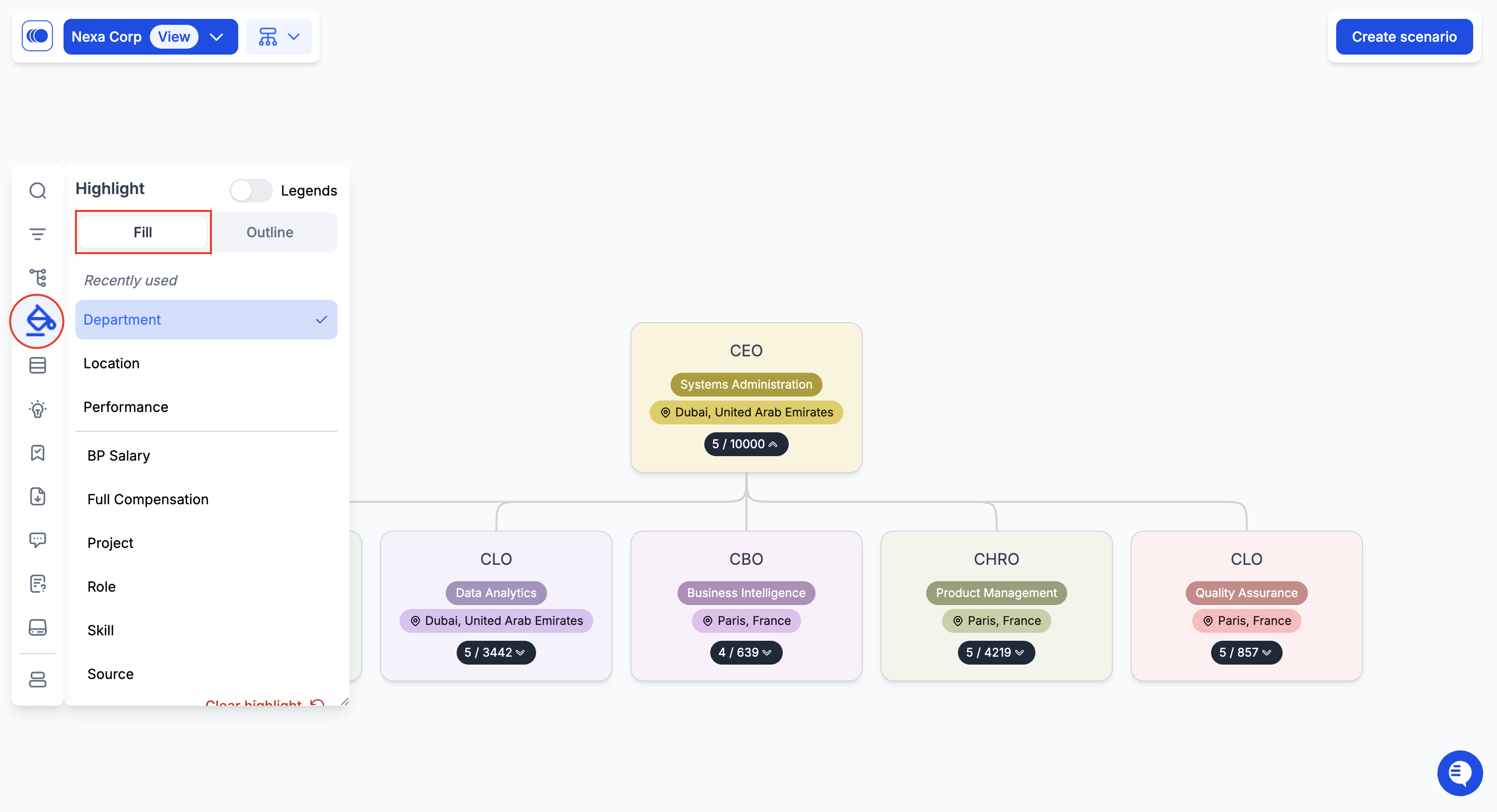
Org charts now support dual-attribute highlighting for clearer visualization. Previously, you could only highlight one attribute, such as department. \
Now, you can assign one attribute to the card fill color and another to the outline, making it easier to distinguish different aspects of your organization.
* Within your main org chart, click **Highlight** in the left navigation bar..
* Select an attribute for Fill By (e.g., Department) and another for Outline By (e.g., Location) to create layered insights.
### Invite collaborators to edit Slide Packs
Teams can now edit Slide Packs together, ensuring presentations stay aligned and up to date. You can also lock specific slides to prevent edits.
* Open a Slide Pack and click **Share Pack** in the **Export** menu.
* **Invite collaborators** and manage permissions to control who can **view** or **edit** specific slides.
* To **remove** a collaborator, go to Share Pack > View All Collaborators, then click Remove next to their name.
### Export Slide Packs as PPT
You can export the entire pack as a PPT, previously you could only download Slide Packs as individual slides.
* Open a Slide Pack, click Export, and select All Slides to download the full pack
## **✅** Improvements
### Custom Y-Axis Sorting for Hub Charts
You can now reorder Y-axis fields on Hub Charts, letting you prioritize which data appears first for a more customized analysis experience.
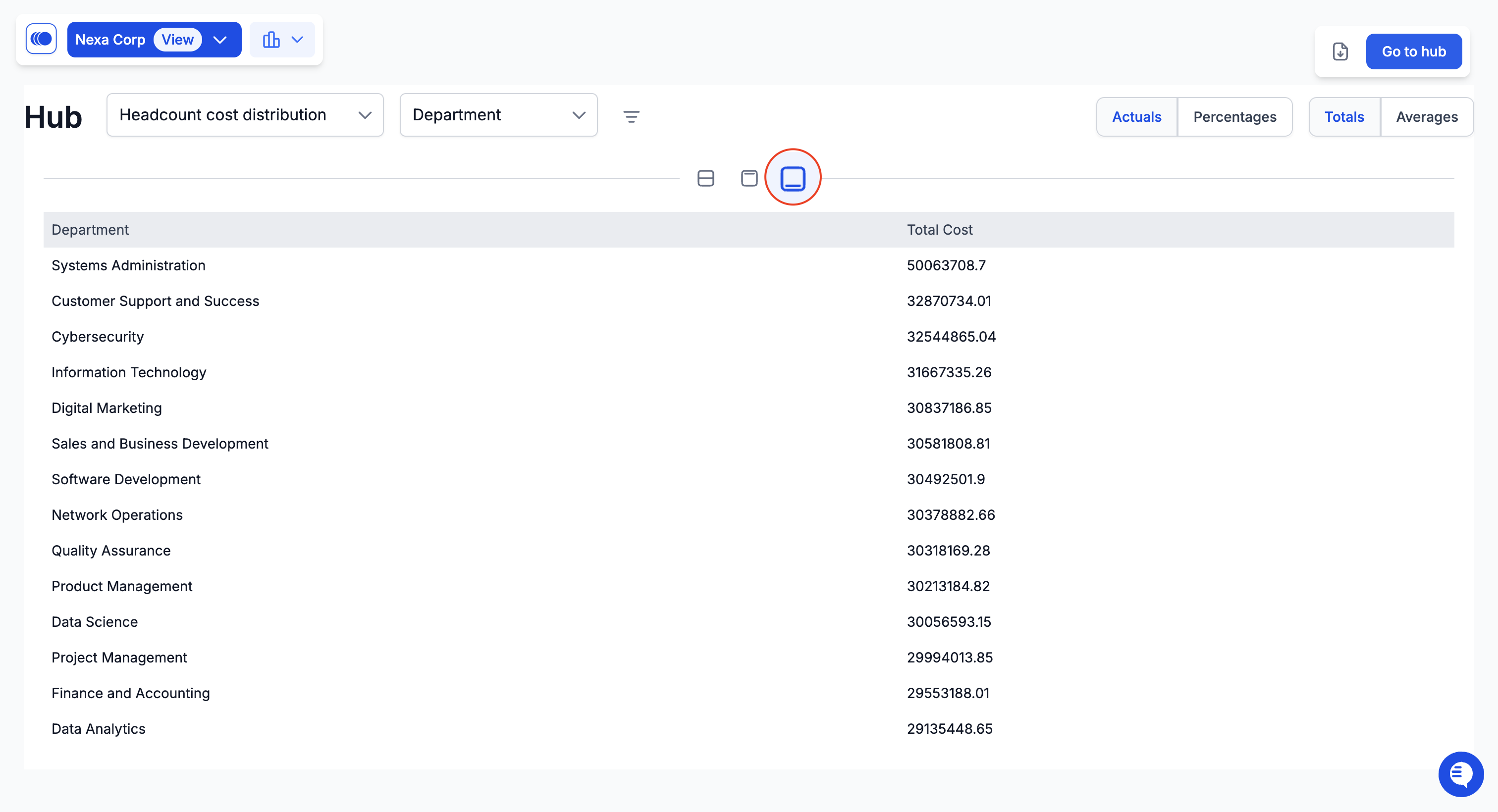
### Table View in Hub Charts
Hub Chart data can now be viewed in a tabular format, making it easier to analyze large datasets at a glance.
### Vacant Positions in Scenarios
Scenarios now automatically recognize vacant positions by detecting empty 'appointed employee' fields, improving accuracy in workforce planning.
**+70 more improvements, bug fixes, and stability updates.**
---
# Agent Instructions: Querying This Documentation
If you need additional information that is not directly available in this page, you can query the documentation dynamically by asking a question.
Perform an HTTP GET request on the current page URL with the `ask` query parameter:
```
GET https://docs.agentnoon.com/changelog/release-notes/february-2025.md?ask=
```
The question should be specific, self-contained, and written in natural language.
The response will contain a direct answer to the question and relevant excerpts and sources from the documentation.
Use this mechanism when the answer is not explicitly present in the current page, you need clarification or additional context, or you want to retrieve related documentation sections.
-png.png)