> For the complete documentation index, see [llms.txt](https://docs.agentnoon.com/llms.txt). Markdown versions of documentation pages are available by appending `.md` to page URLs; this page is available as [Markdown](https://docs.agentnoon.com/admin-capabilities/overview-1/user-invitations.md).
# User Invitations
Invite users and manage their access
### Overview
This guide explains how to invite users to Agentnoon, assign access groups, and set data scopes to control what users can view and edit.
### Inviting a User
1. Click the **Invite User** button.
2. Enter the users' details (e.g., name and email). You can also invite multiple users at once for quicker onboarding.
* New users are highlighted in green
* Existing users are highlighted in blue.\
\&#xNAN;*Note: Email invites are sent only to new users*.
2. Choose the access type:
* **New Access**: Assign permissions from scratch.
* **Replicate Access**: Copy permissions from an existing user.
3. Select the relevant **Access Group** to determine which fields the user can view or edit.
### Understanding Scopes
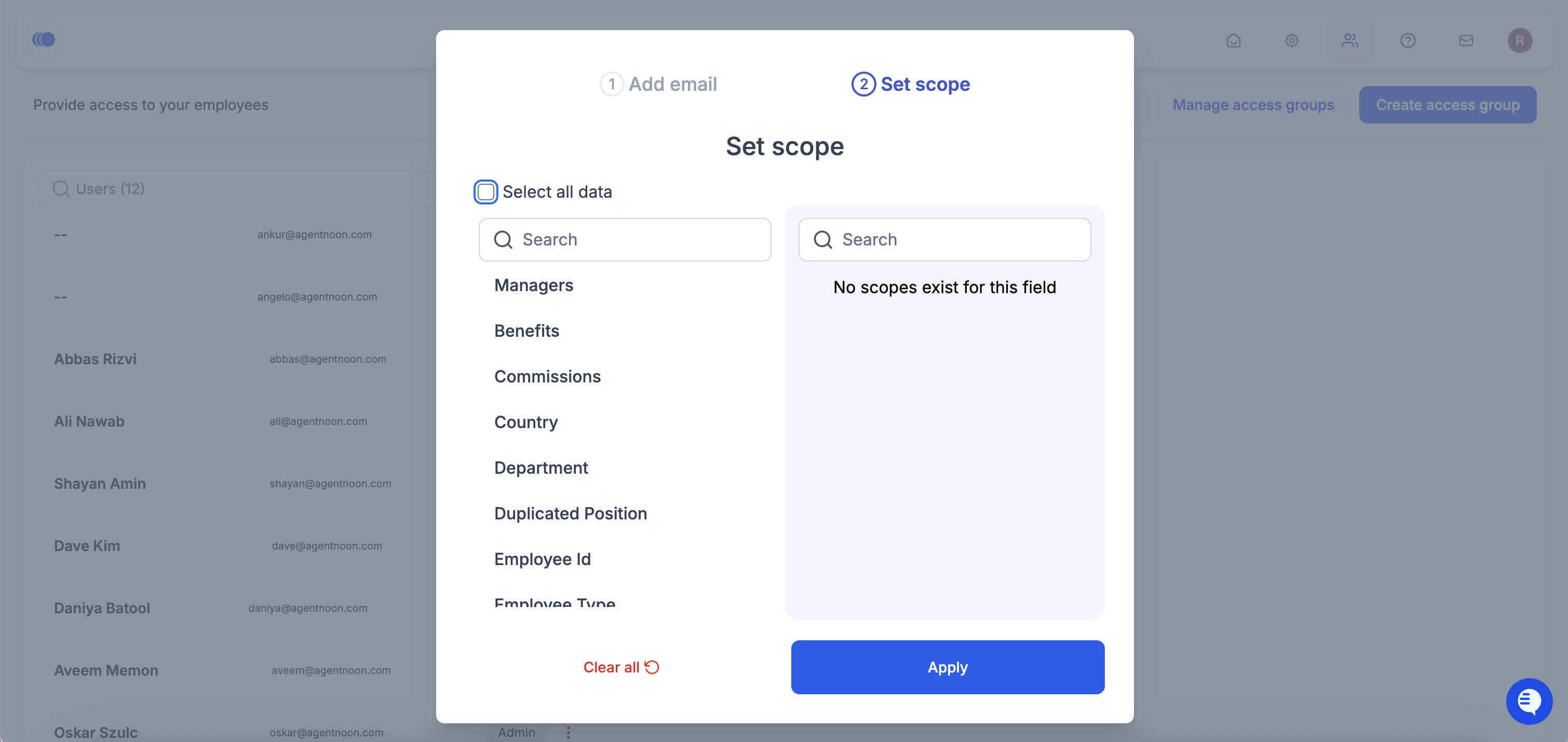
Scopes define which data subsets a user can access. Unlike access groups, which control field-level permissions (e.g., salary, department visibility), scopes determine **which records the user can see**.
### Setting Scopes
1. Select the scope for the user based on imported fields such as department, location, or specific teams.
2. Recommended scope settings:
* **Manager Scope**: Grants access to a specific manager and their direct reports.
3. You can apply **multiple filters** to refine access, such as limiting visibility to specific departments within a manager’s team.
4. You can also choose Select All Data, which allows admins to quickly grant access to the entire company.
5. Click **Apply** to finalize scope settings.
### Completing the Invitation
1. New user receives an **email invitation** to join Agentnoon.
2. You can monitor their invitation status from the access control panel.
By properly setting access groups and scopes, you ensure users only see relevant data while maintaining security and efficiency.