> For the complete documentation index, see [llms.txt](https://docs.agentnoon.com/llms.txt). Markdown versions of documentation pages are available by appending `.md` to page URLs; this page is available as [Markdown](https://docs.agentnoon.com/admin-capabilities/overview-1/access-groups.md).
# Access Groups
Create access groups to manage permissions for multiple users
### Overview
Access groups in Agentnoon allow you to set permissions for data access and apply them to multiple users at once. This guide explains how to create, manage, and modify access groups.
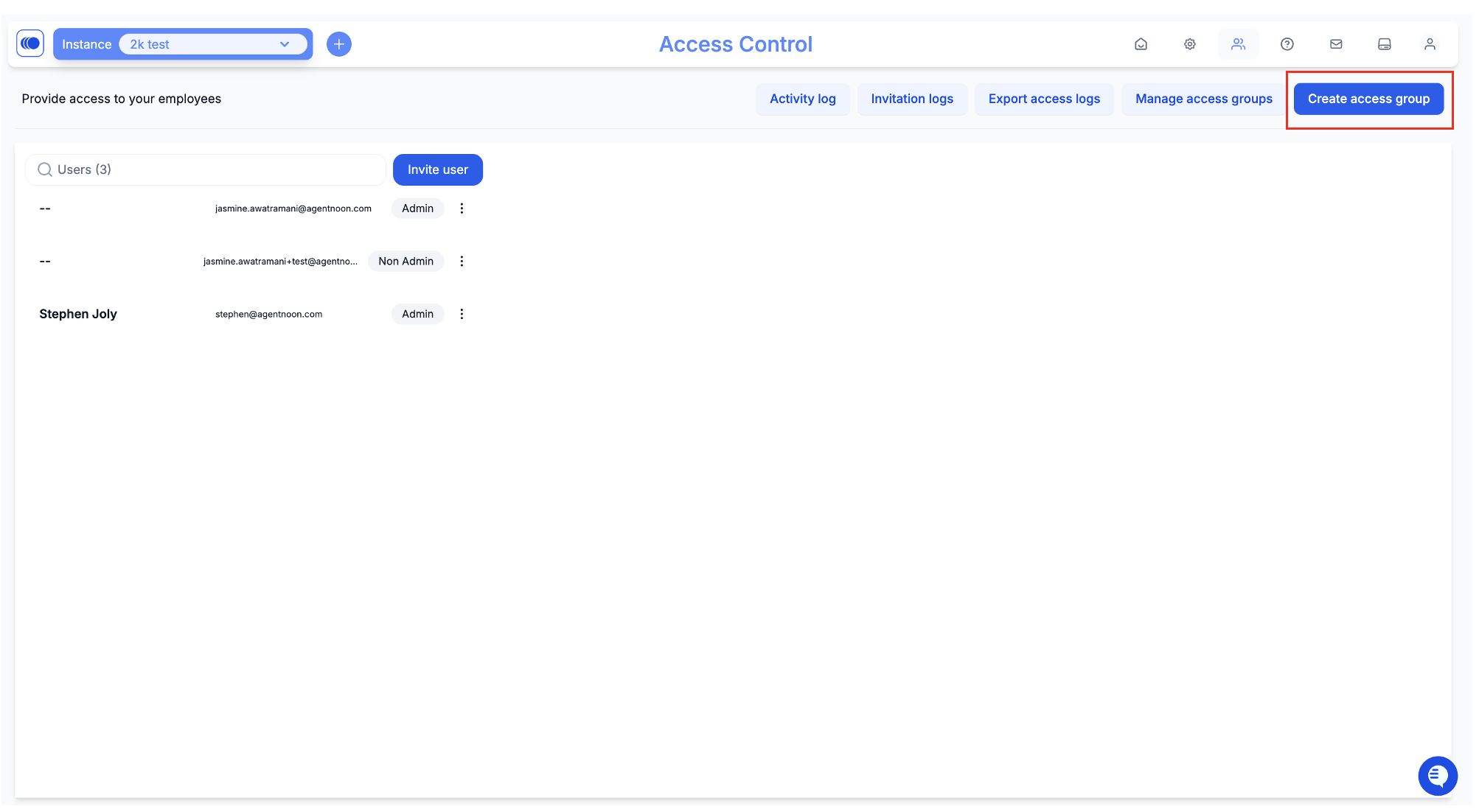
### Navigating to Access Control
1. Click on the **Access Control** panel located at the top right of the home screen.
2. Look for the **button with two people** to enter the access group settings.
### Creating an Access Group
1. Click the **Create Access Group** button.
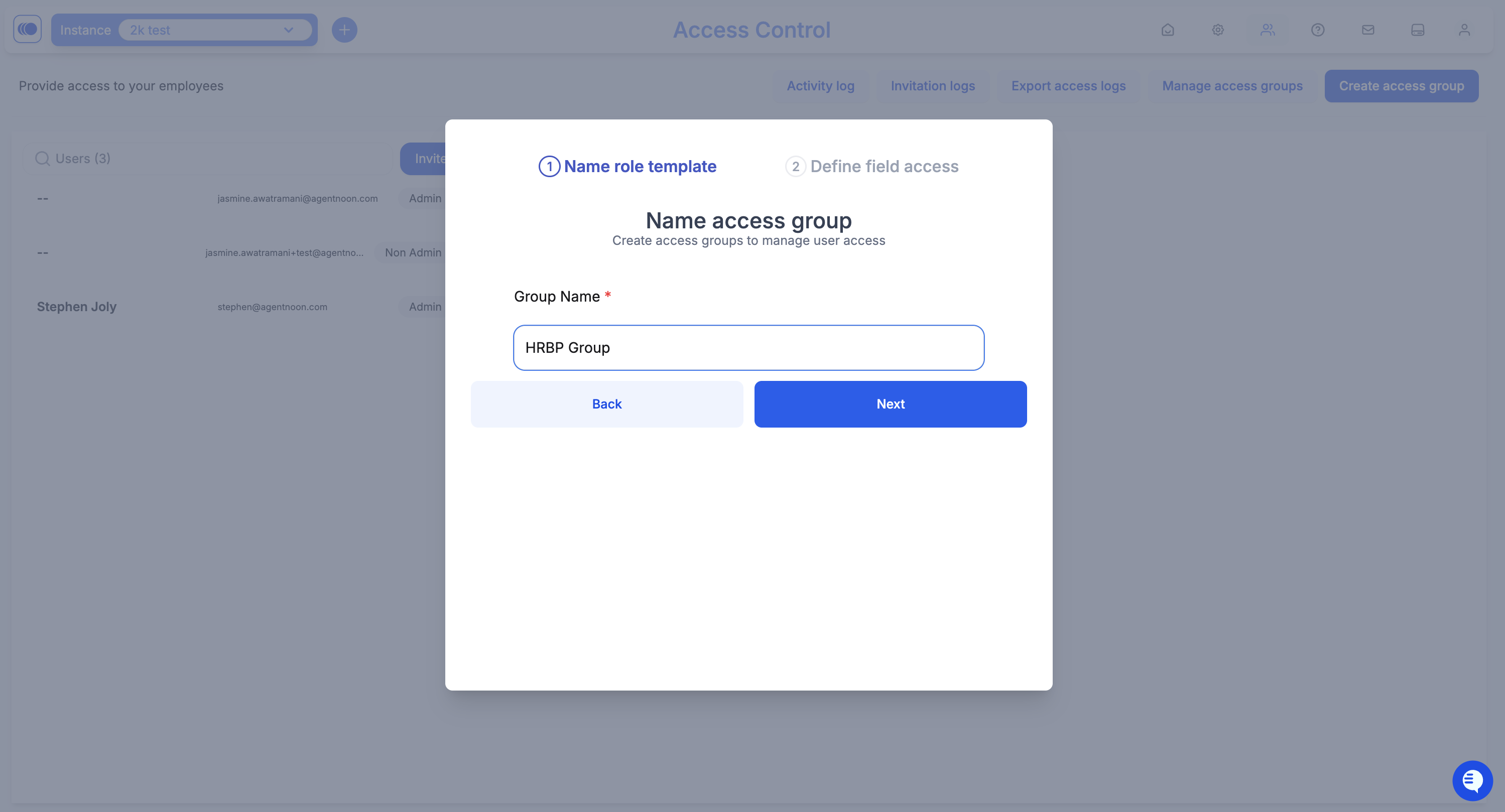
2. Enter a **name** for the group (e.g., "HRBP Group").
3. Choose permissions for different fields:
* **View access**: Users can see the field.
* **Edit access**: Users can modify the field insides scenarios
* **Hidden**: Users cannot see the field.
4. Categories of fields:
* **Basic fields** (general user information)
* **Compensation fields** (salary-related details)
* **Custom fields** (imported data beyond standard fields)
* Use **"Apply to All Fields"** to apply settings universally or configure them individually.
5. Use **'Features'** tab to lock / unlock specific features (e.g., exports org chart, forecast, scenarios)
6. Click **Next** to finalize and save the access group.
### Managing Access Groups
1. Click the **Manage Access Groups** button.
2. View a list of existing access groups.
3. Options available:
* **Edit** permissions and settings for an existing group.
* **Delete** an access group if no longer needed.